Unlock and lock
Open, unlock, and lock the vault — biometrics, recovery, and auto-lock.
QubKey protects your vault with a master password. While locked, no entry is readable — not by the app, nor by the browser extension.
Daily unlock, manual lock, biometrics (when available), and recovery via the recovery phrase.
Open an existing vault
Launch QubKey — the home screen appears
QubKey home screen
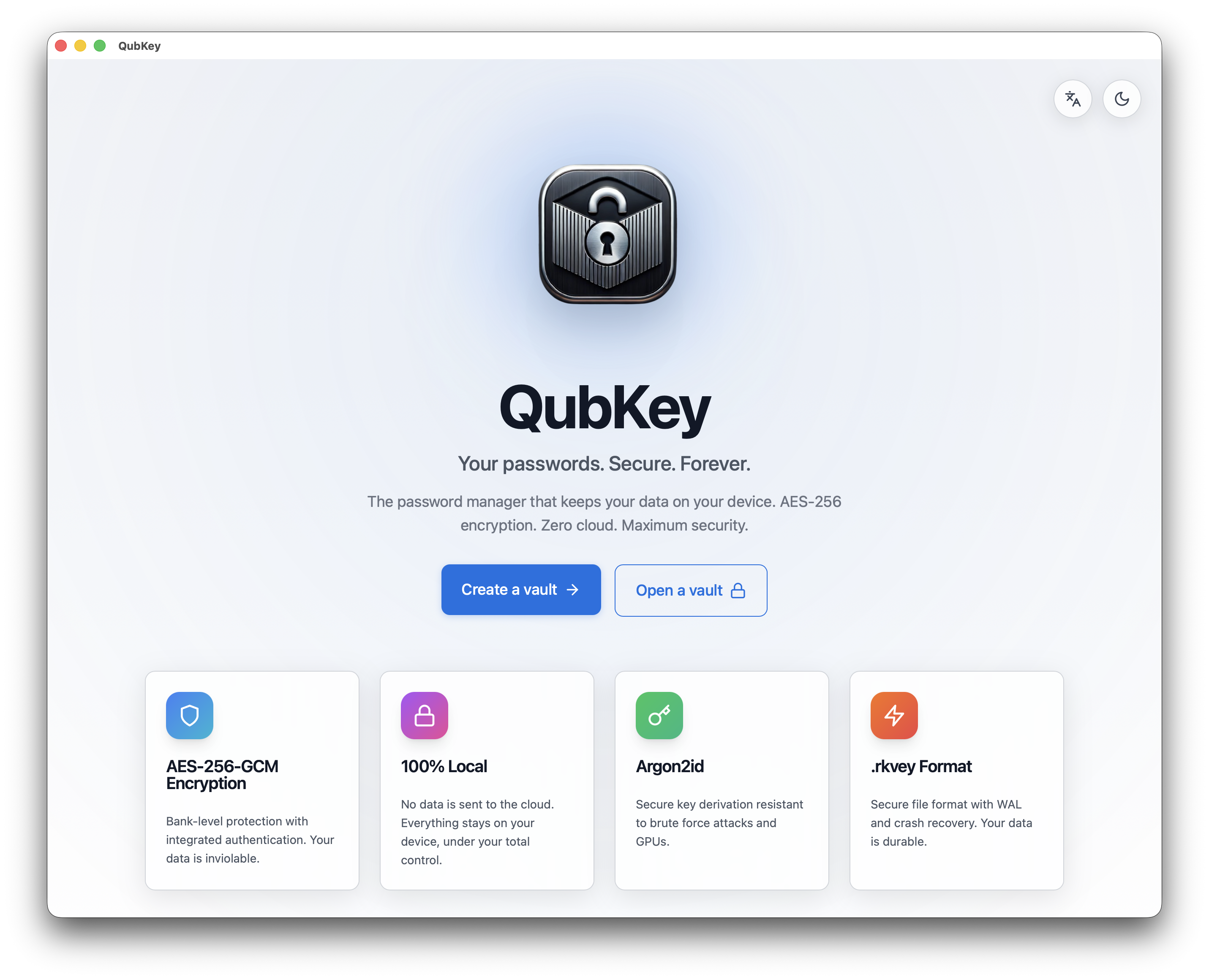
Click Open vault (or equivalent)
Open vault button
Select your .rkvey file in the system dialog
.rkvey file picker
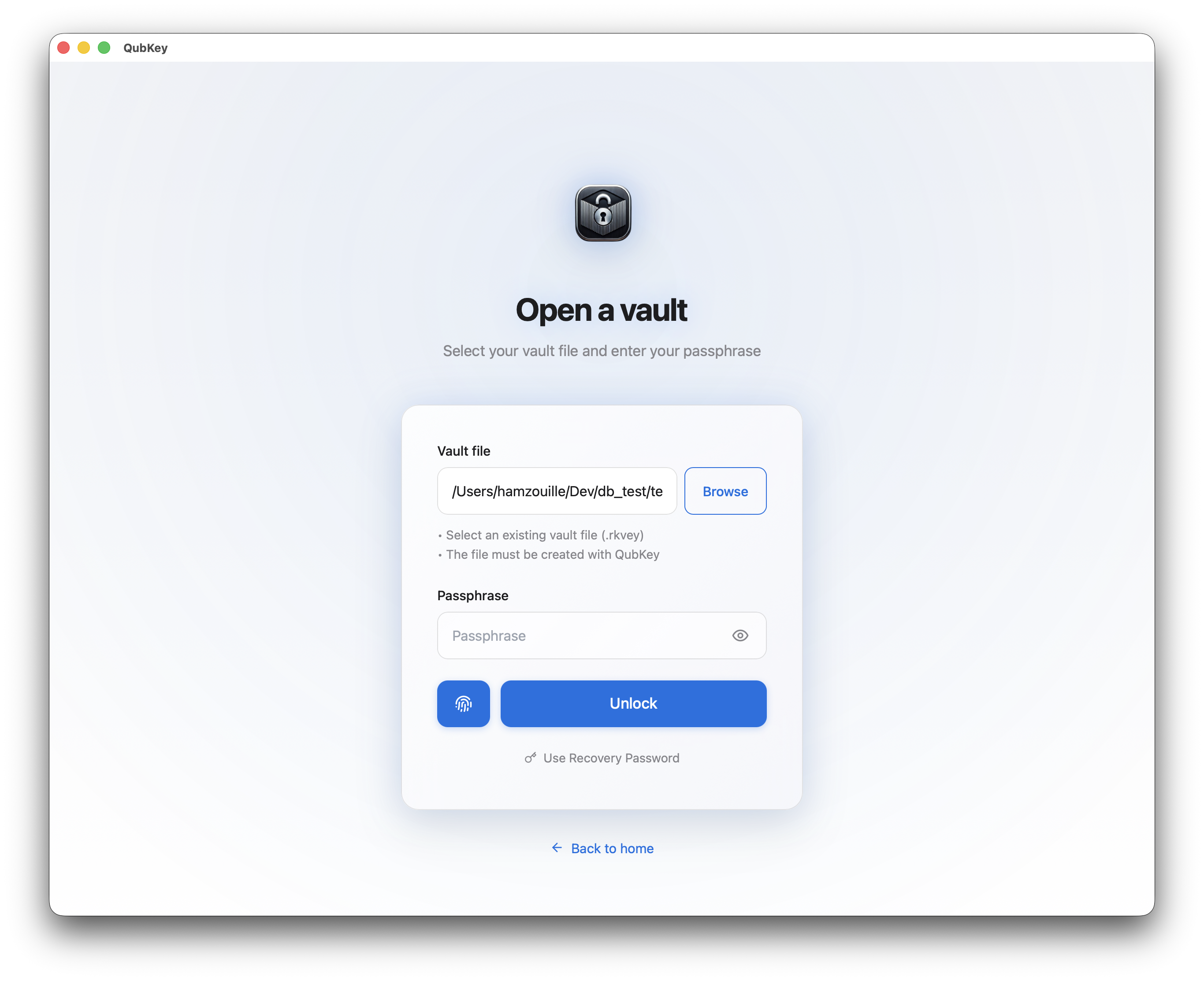
The unlock screen appears — enter the master password
Unlock the vault
Enter your master password in the secure field
Unlock screen
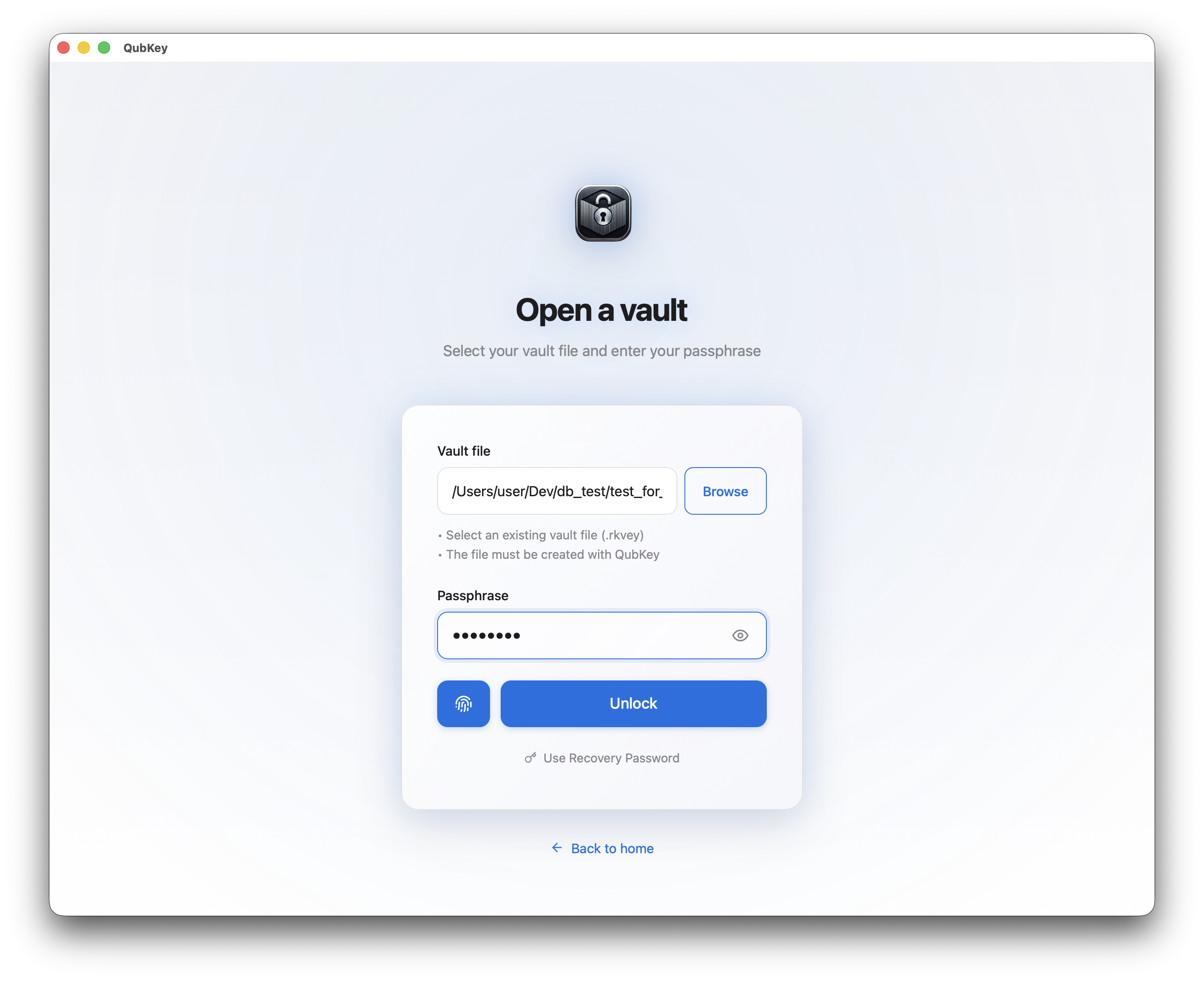
Click Unlock (or press Enter)
Unlock button
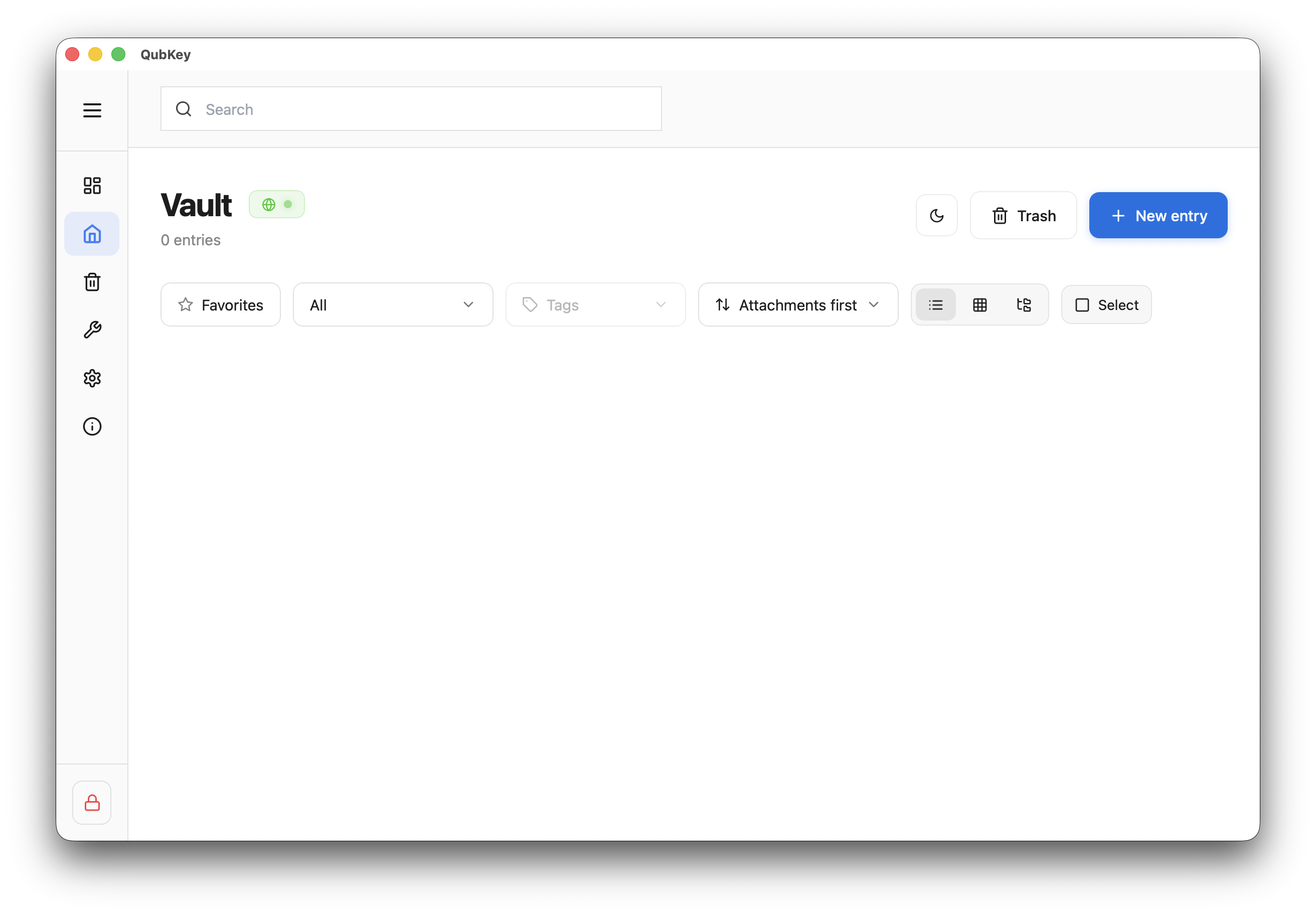
On success, you reach the vault (entry list)
Unlocked vault
On failure, an error message appears — check the password (case-sensitive)
Lock the vault
From any unlocked vault screen, click Lock in the sidebar or menu
Lock button
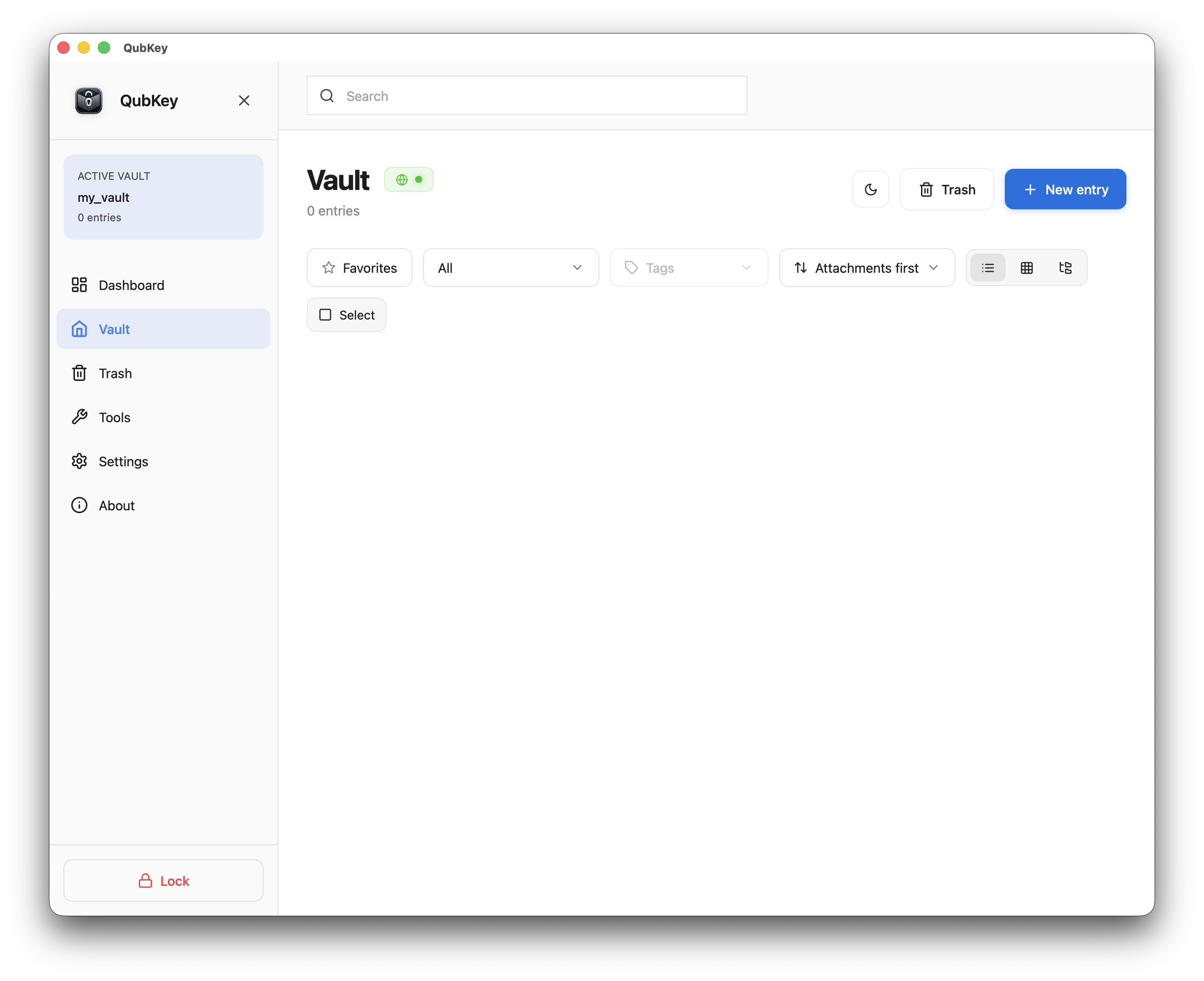
The vault is immediately encrypted in memory — the extension loses access
Biometric unlock
Check availability
Open Settings → Security (settings guide)
Security settings — biometrics section
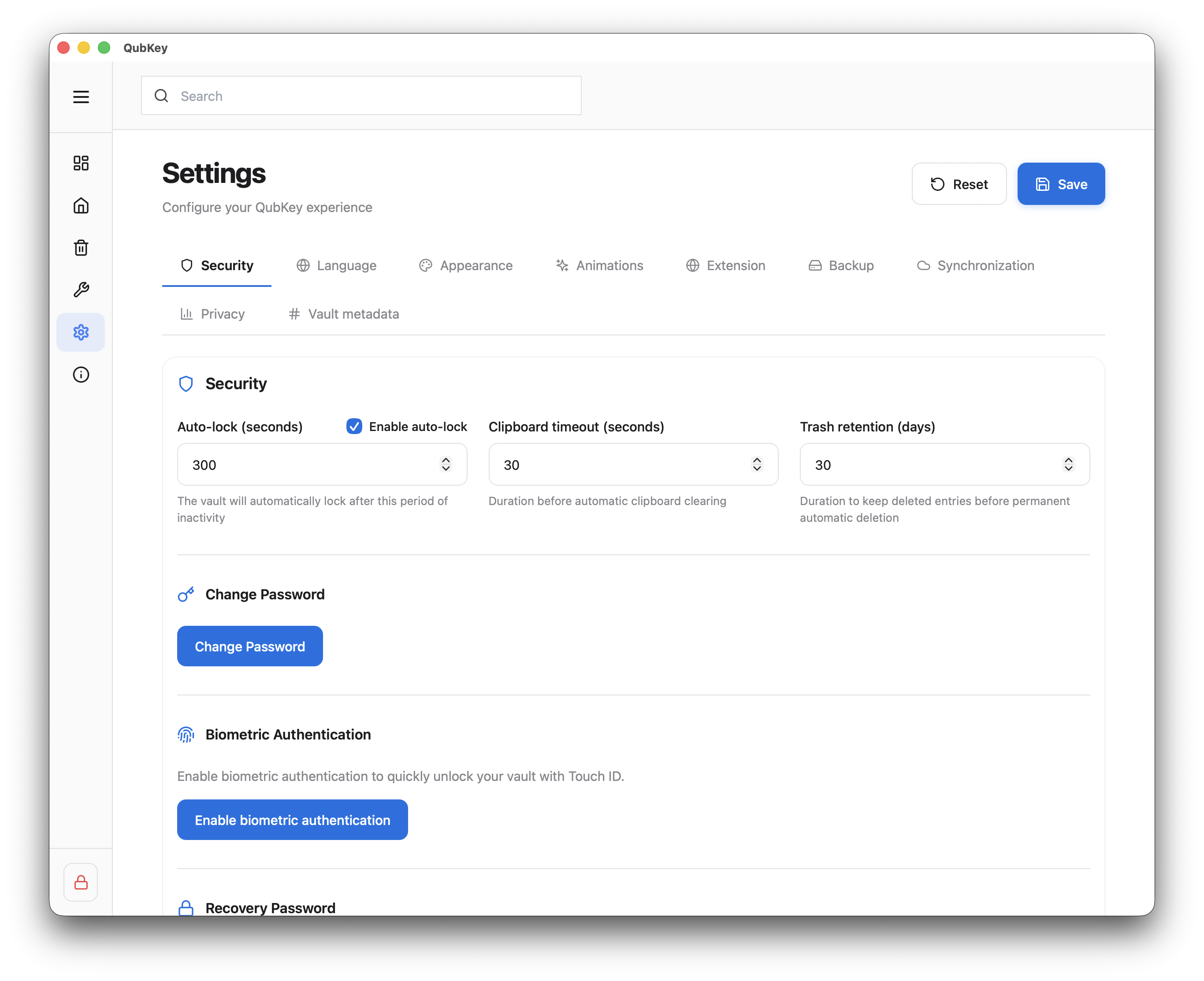
If Touch ID / Windows Hello is available, an Enable biometrics option appears
Enable biometrics
Click Enable — QubKey asks for your master password once to link biometrics to the vault
Biometric enable dialog
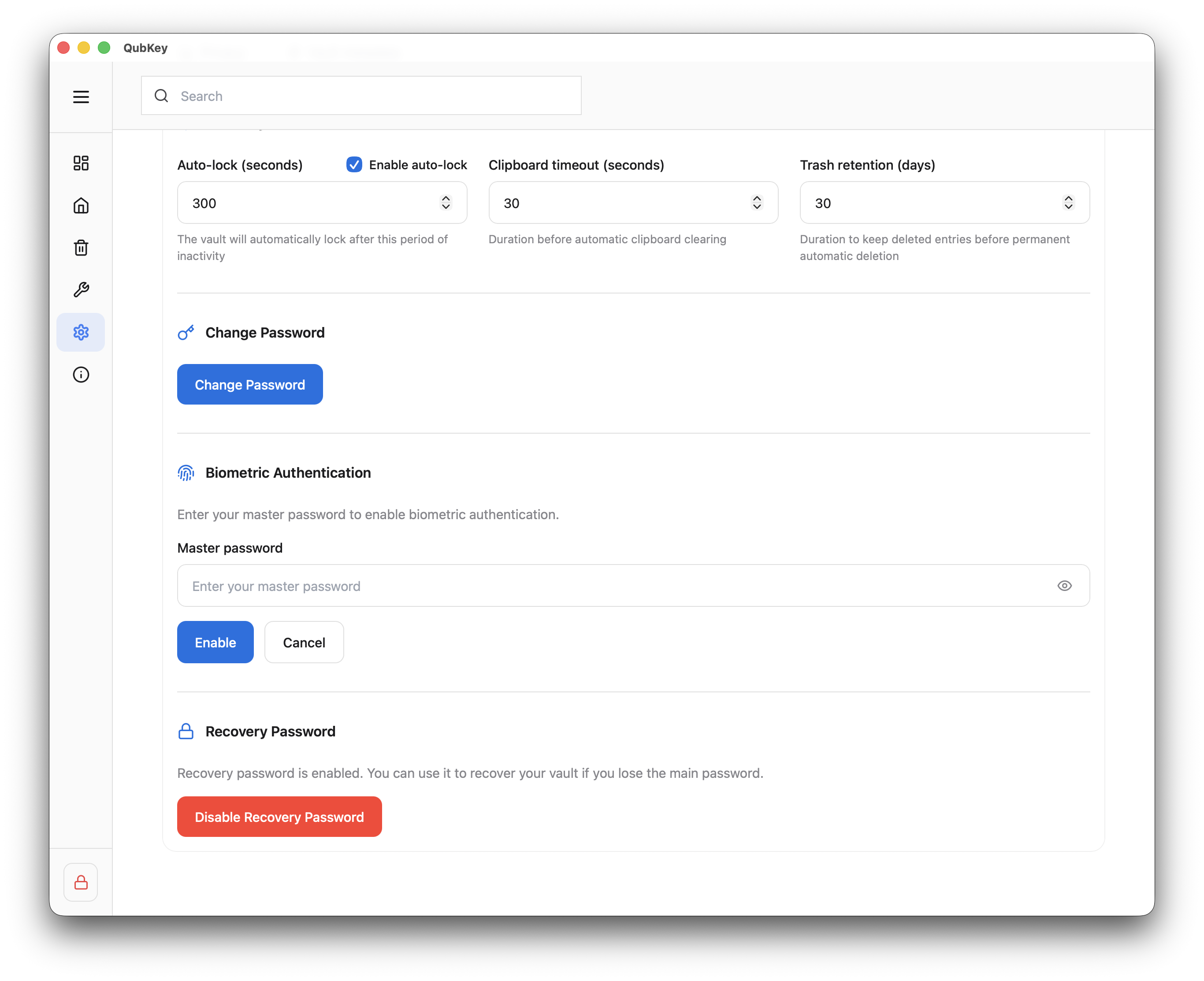
Confirm with fingerprint or Face ID — on future unlocks, biometrics replaces password entry
Biometrics enabled in settings
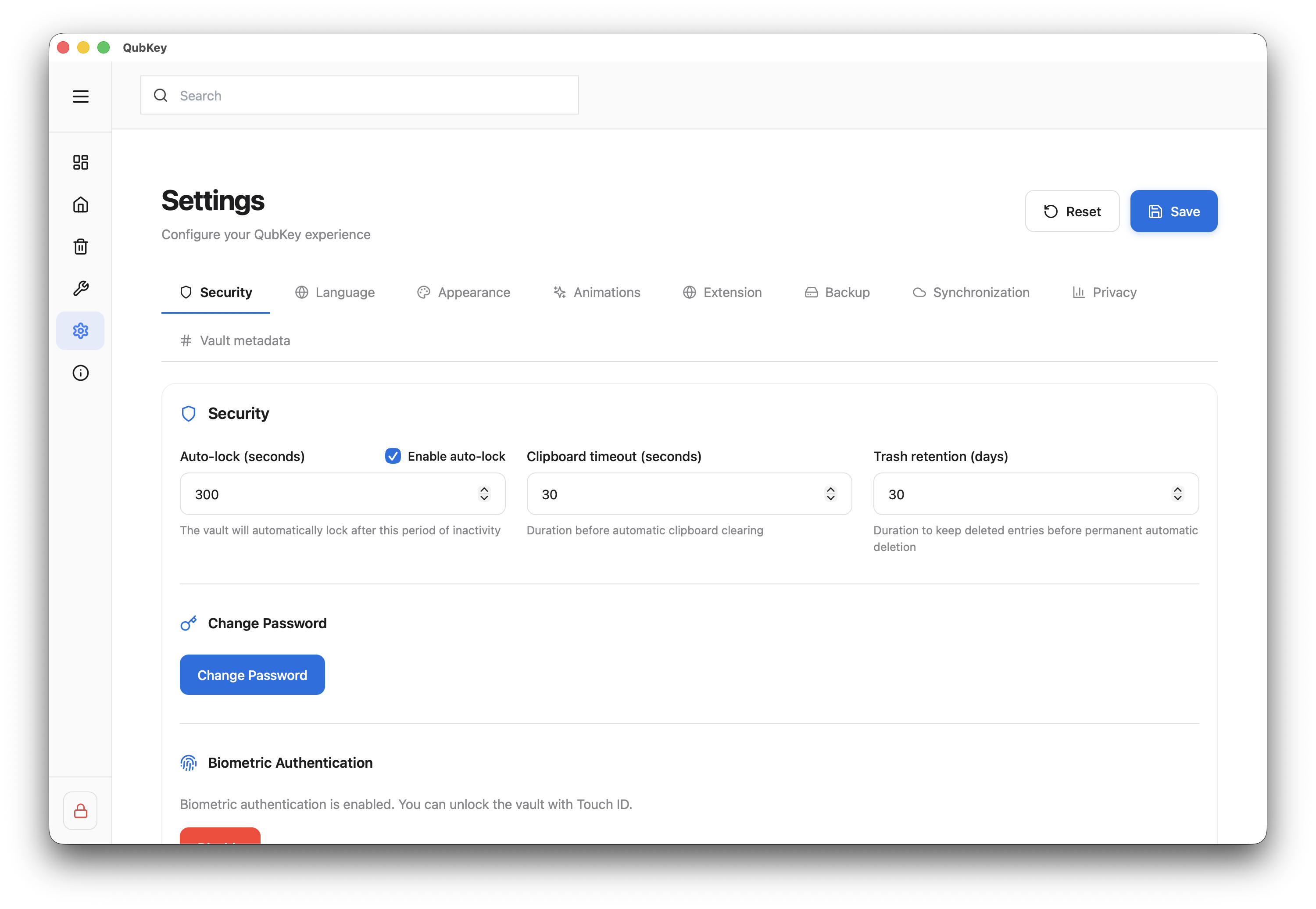
Disable
Go back to Settings → Security → Disable biometrics — the master password is required again at each unlock.
Forgotten password
Recovery
Forgot master password?
- On the unlock screen, click Use recovery key
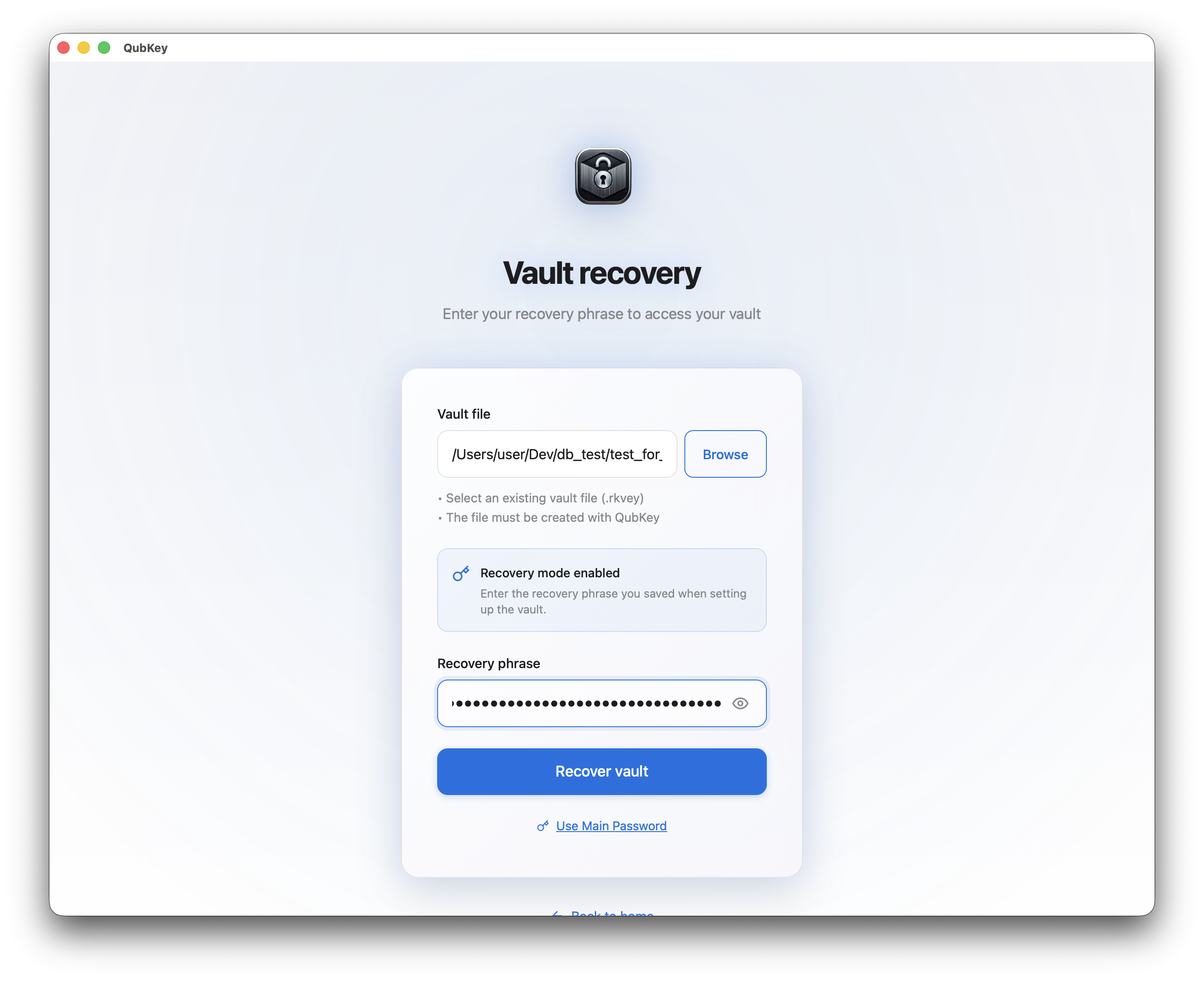
- Enter the phrase saved during vault creation
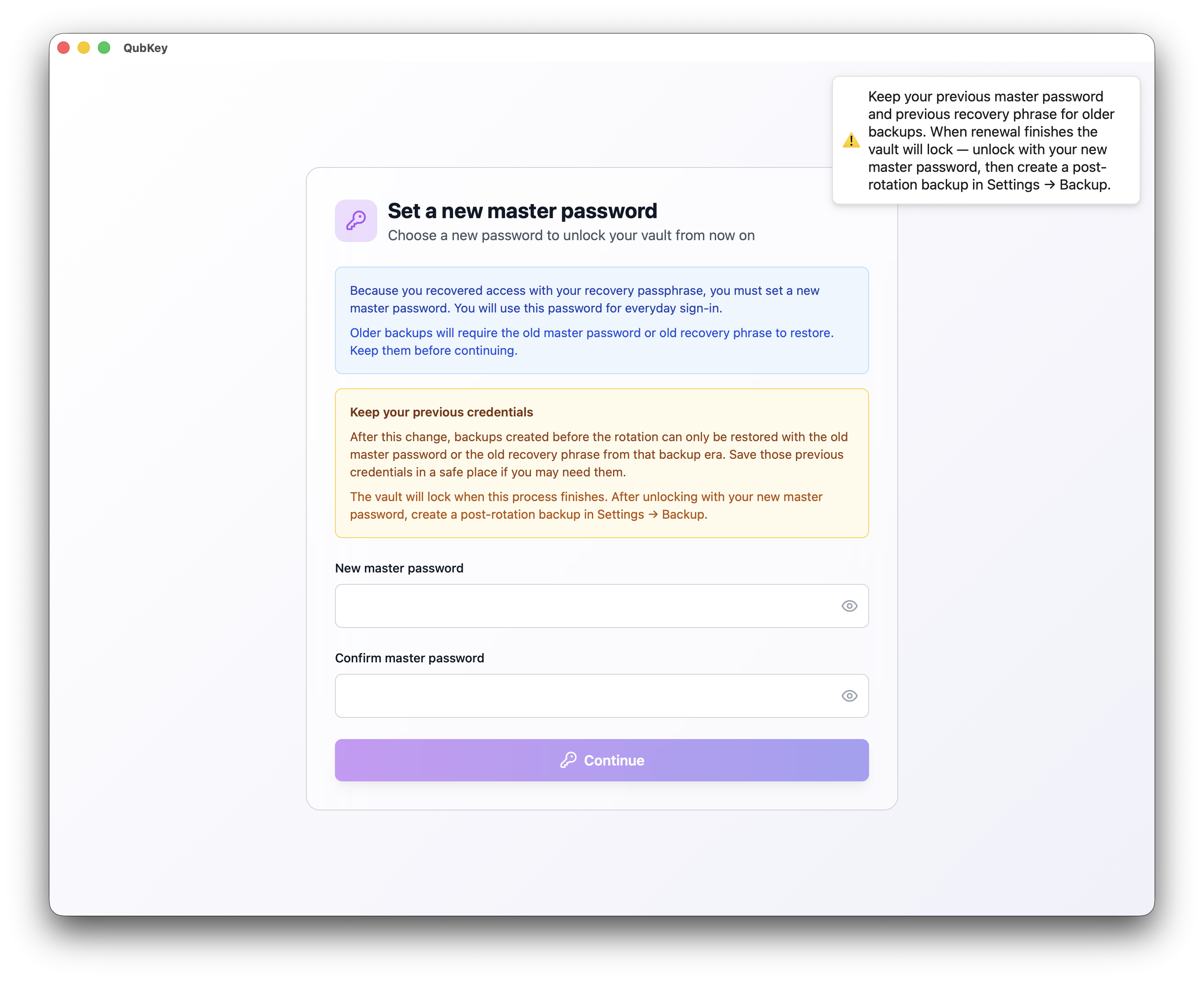
- Set a new master password
Recovery key screen
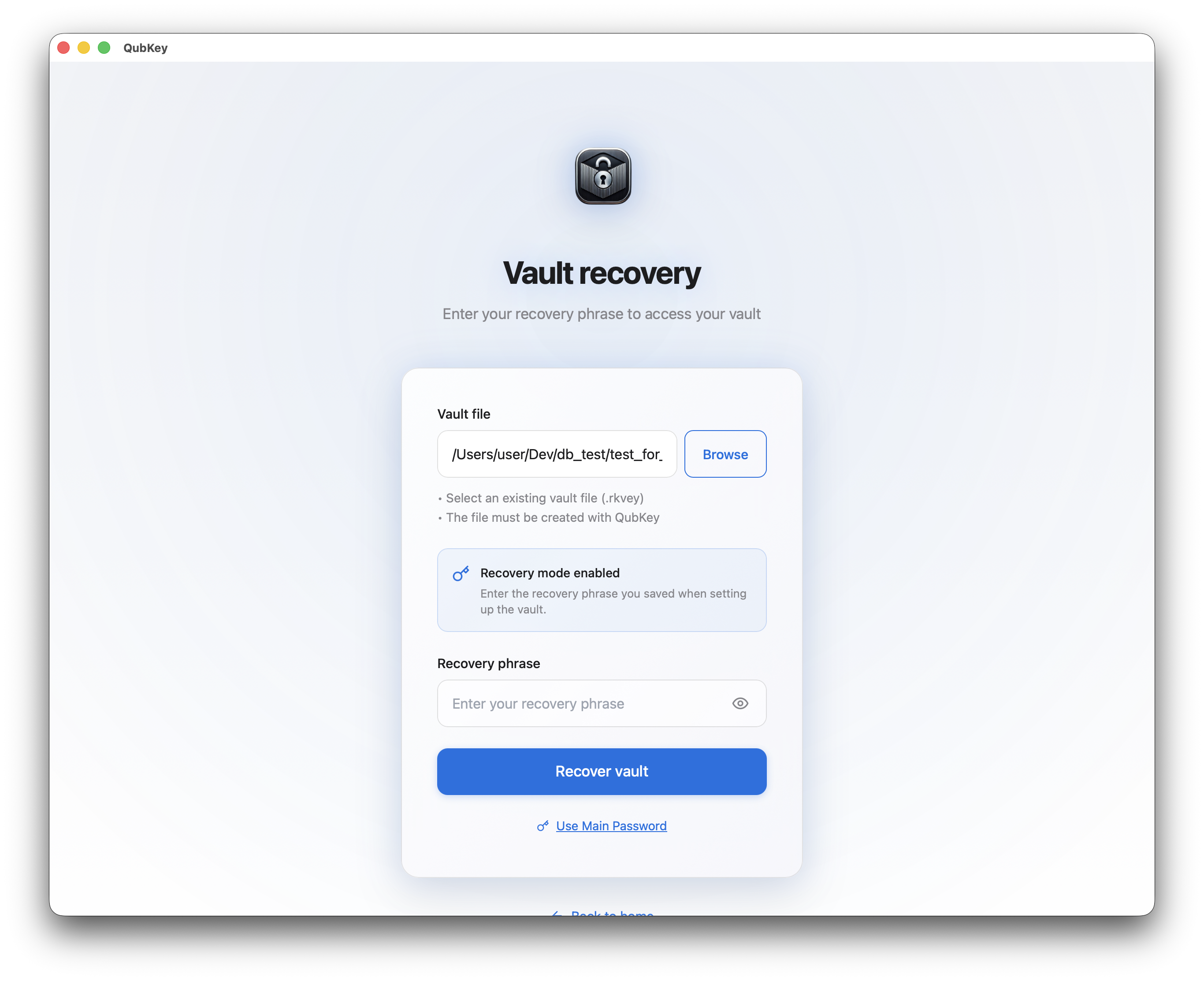
Recovery phrase entered
New master password
Without the recovery phrase, QubKey cannot decrypt the vault — no backdoor.
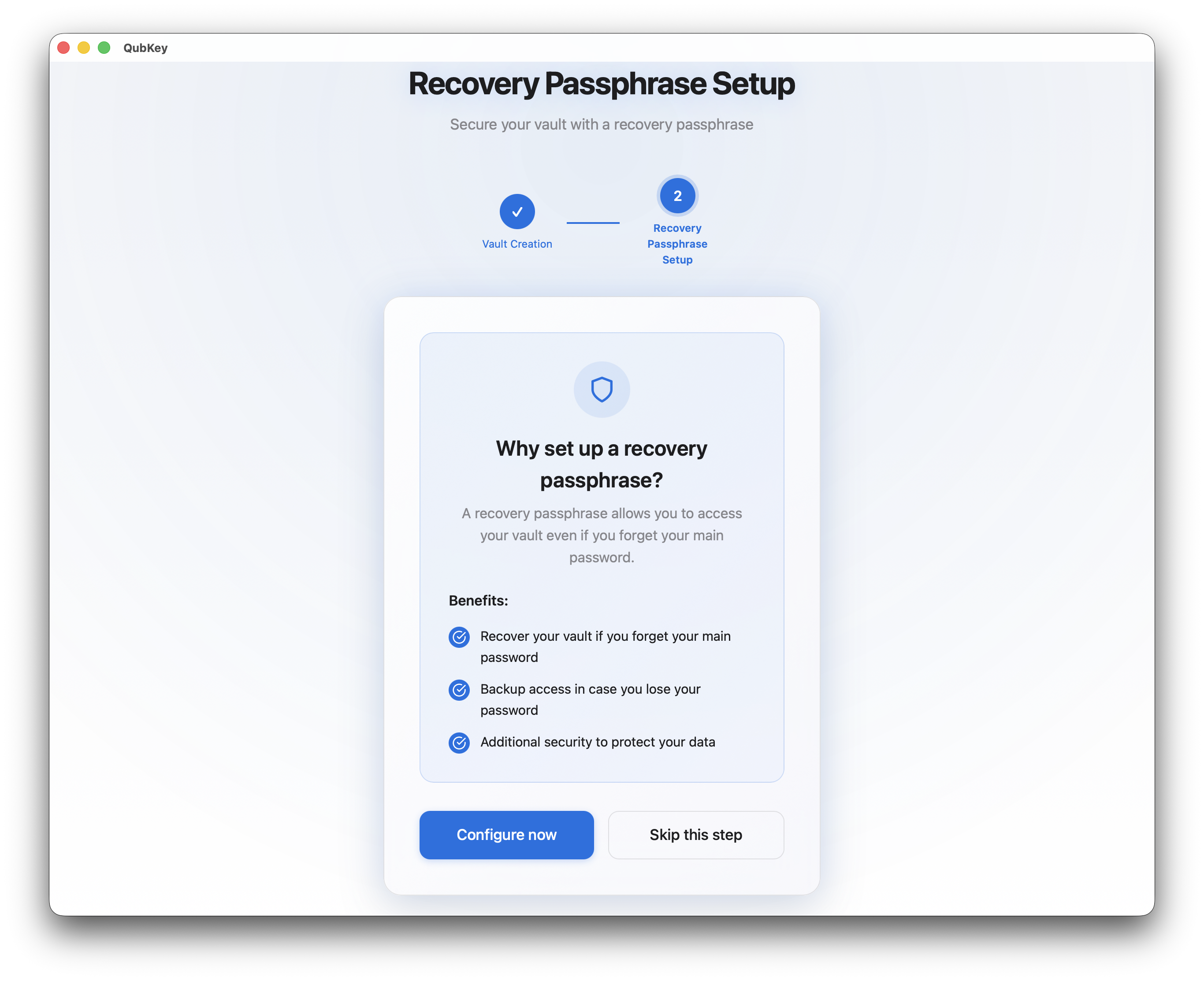
Renew recovery key
Settings → Security → Recovery key section → Renew
Or dedicated route /renew-recovery when offered after login
Follow the wizard — a new phrase replaces the old one; archive the old phrase offline
Recovery renewal intro
New master password
Keep the new phrase offline and separate from the .rkvey file
Multiple vaults
Home screen → Open vault to select another .rkvey file
Each vault has its own master password — QubKey remembers the last opened path
Use cases: personal, work, family vaults on the same Mac/PC
Home — open another vault
Auto-lock
Idle timeout
Configure auto-lock in Settings → Security:
- Enable auto-lock (on/off)
- Idle timeout (minimum 30 seconds, default 5 min)
- Clear clipboard on lock (recommended)
Auto-lock settings