Secure one-time sharing
One-time text or password sharing — expiration, link password, max views.
Secure share creates a temporary link to send text or a password — without opening the vault. Ideal for a Wi‑Fi code, a one-off login, or a sensitive note to someone you trust.
Open /tools/secure-share from the hub.
How it protects the secret
- Your browser encrypts the content before upload
- The service only stores already-encrypted content
- Part of the key stays in the URL
#fragment (never sent to the server) - The recipient opens the link: their browser rebuilds the key and decrypts
Transparency
The service keeps metadata (expiration, views, creator email if signed in, hashed IP fingerprint). The “Secure shares” admin UI can review them — not plaintext content. See What the servers can see.
Create a link
Choose content type
At the top of the form: Text or Password (masked display for the recipient).
Secure share form
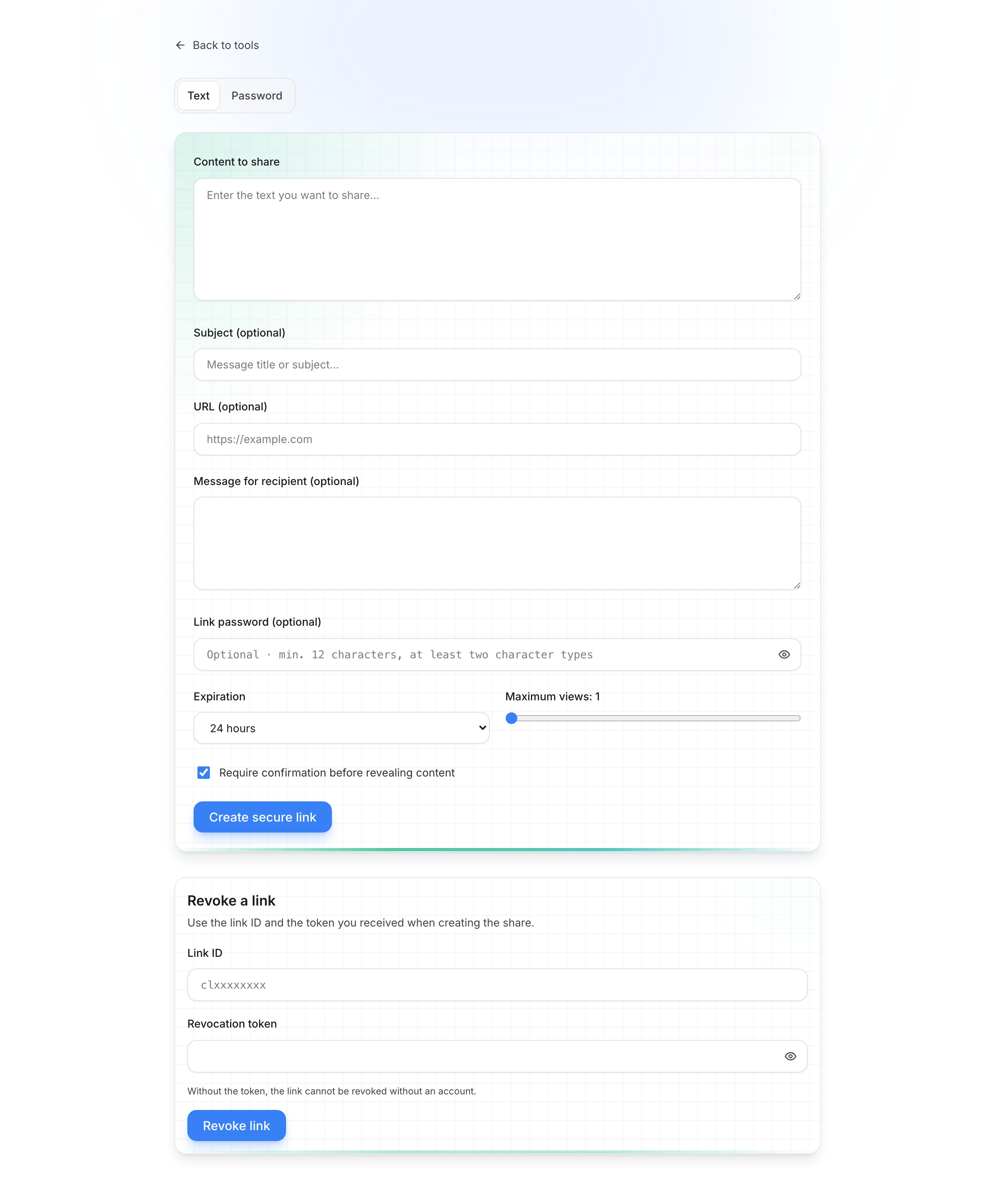
Enter the content
Fill Content to share. Optional: Subject, URL (related link), Recipient message (shown before reveal).
Configure protection
Scroll to the options:
Options — expiration, views, confirmation
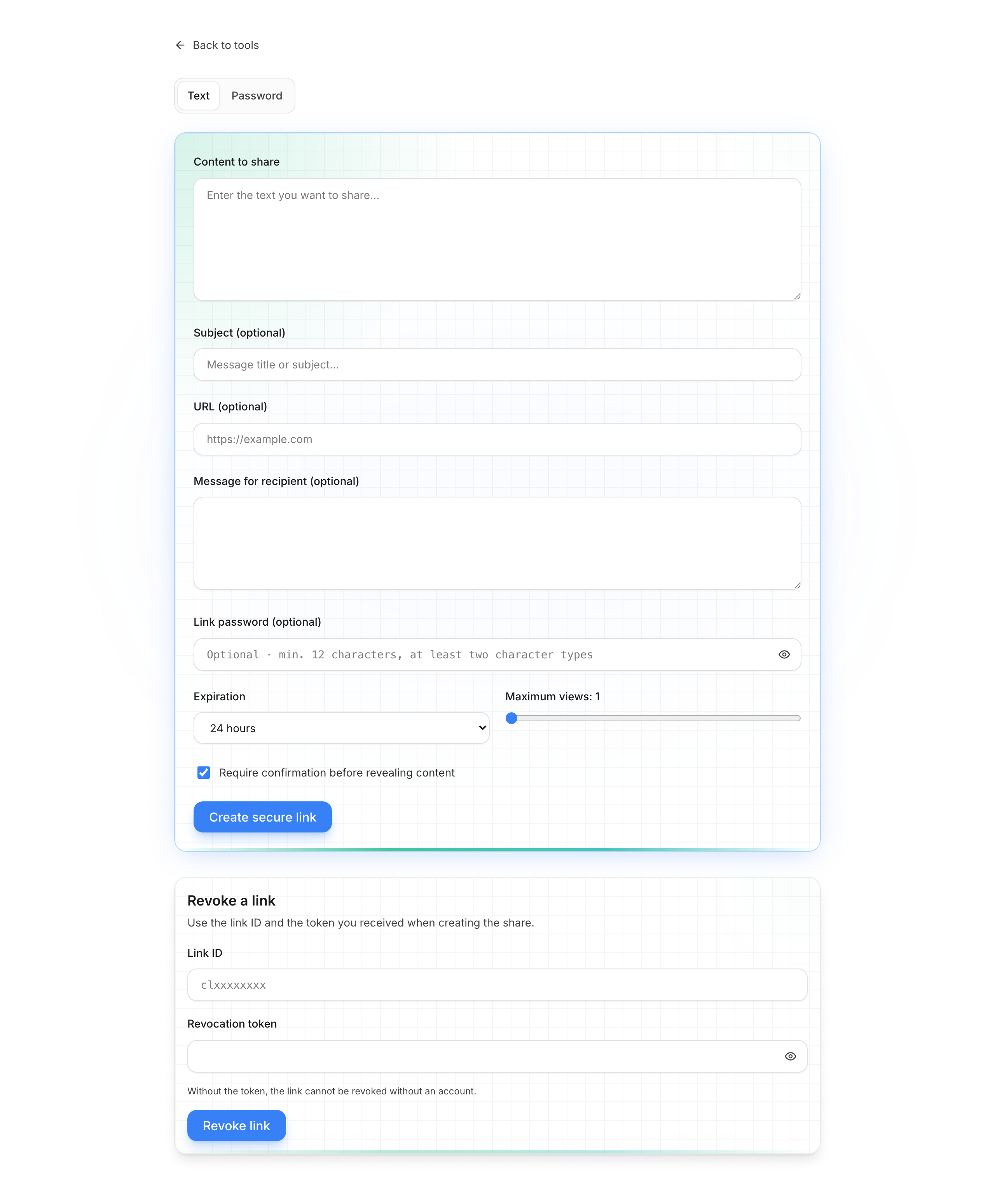
- Link password (optional) — share separately (SMS, call…)
- Expiration — 1 h, 24 h, 7 days, 30 days, after first view, or custom duration
- Maximum views — slider 1 to 100
- Require confirmation — recipient must click before seeing the secret
Full option reference: Share settings.
Create the link
Click Create secure link. A green box shows the full link (with #) and the revocation token.
Link created — URL and token
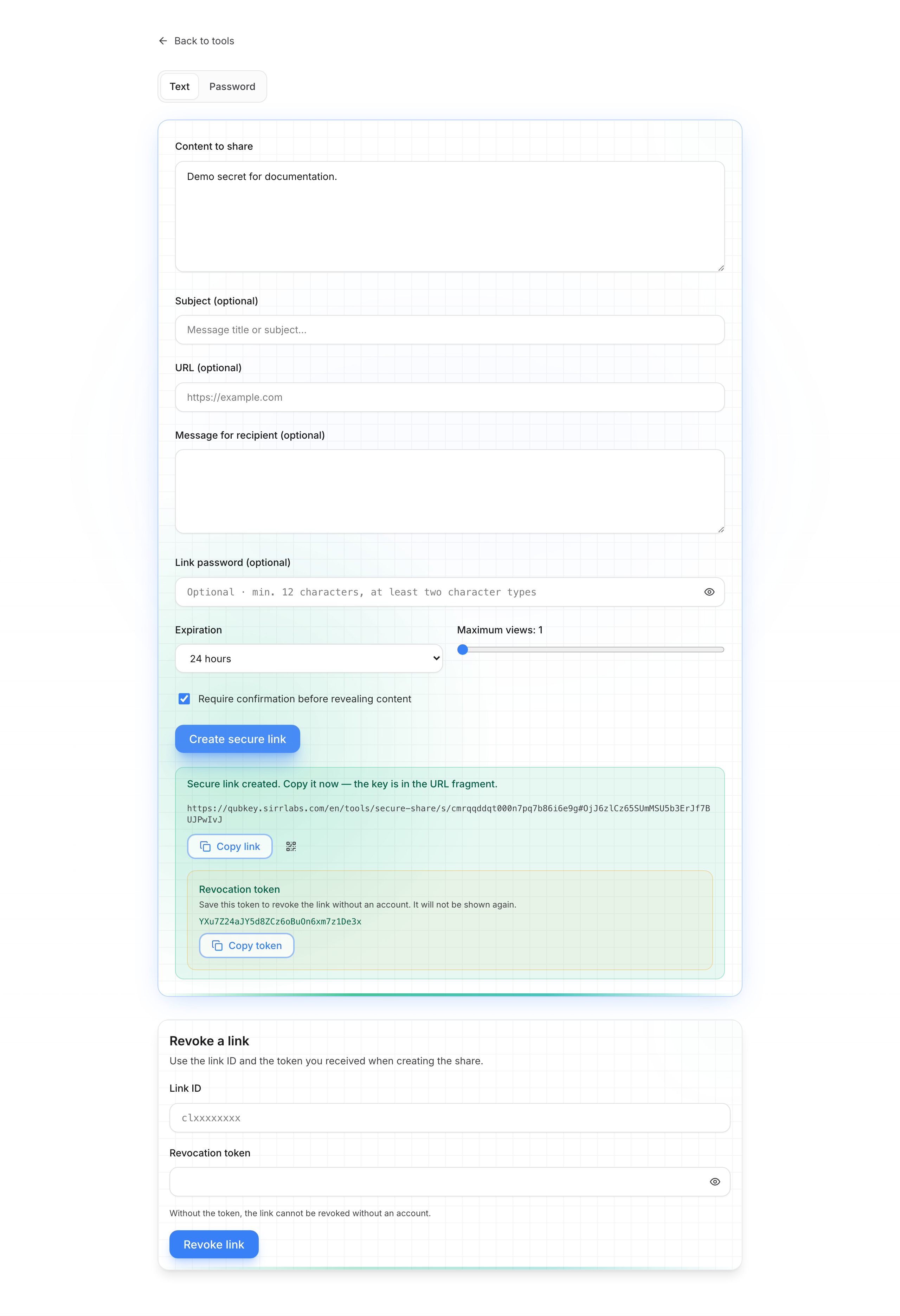
- Copy the link immediately (and QR if needed)
- Copy the token and store it: it will not be shown again
- Send the link to the recipient via any channel you choose
Recipient side
Open the received link
The recipient lands on View a shared secret. They see the view counter and expiration date.
Recipient page — before reveal
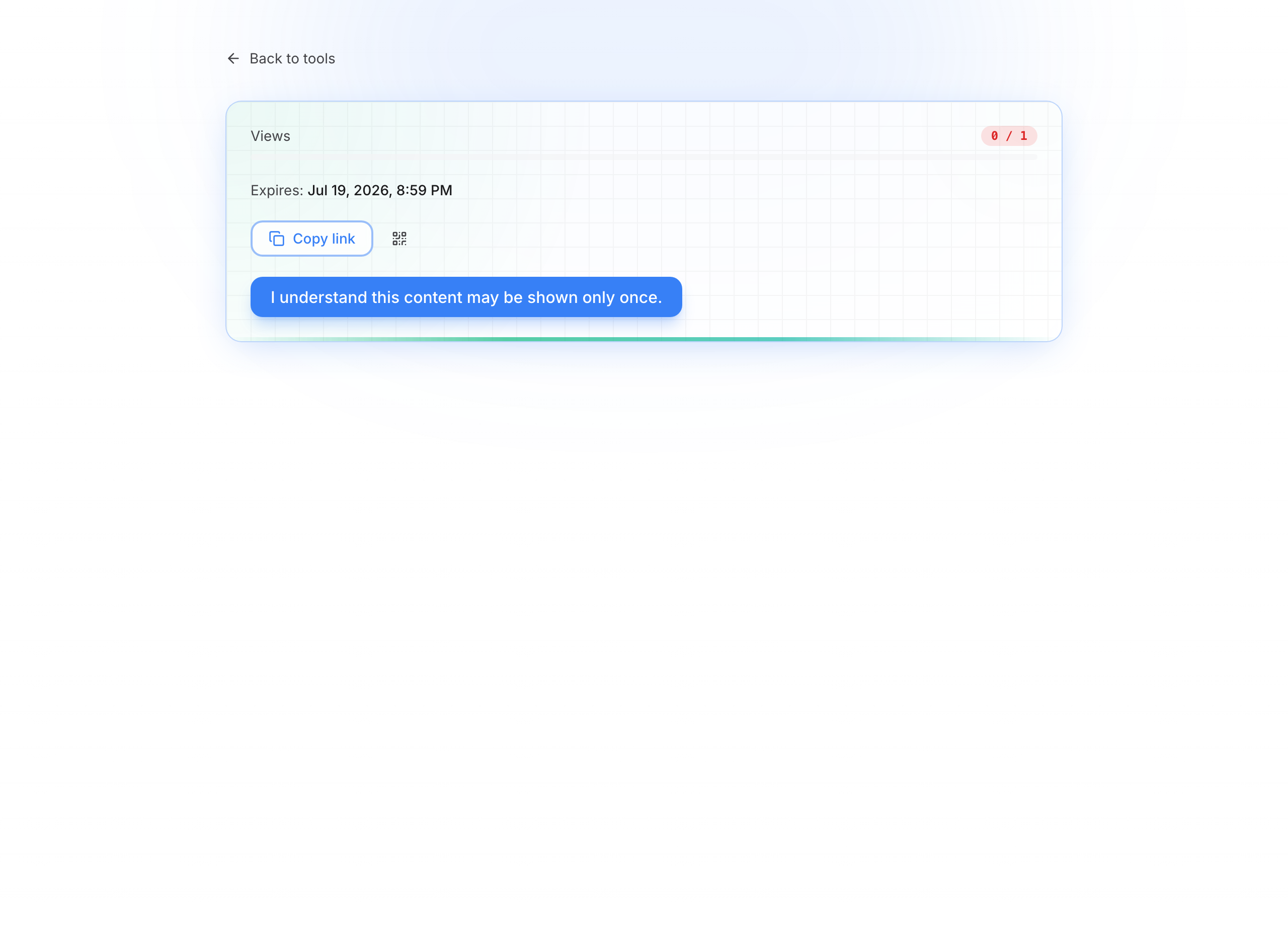
Confirm then reveal
If confirmation is required:
- Read the warning (content may only be visible once)
- Click to confirm
- Click Reveal content
If a link password was set, it is asked before display.
Copy the secret
Content appears clearly. A warning reminds you to copy now if needed.
Secret revealed — counter and copy
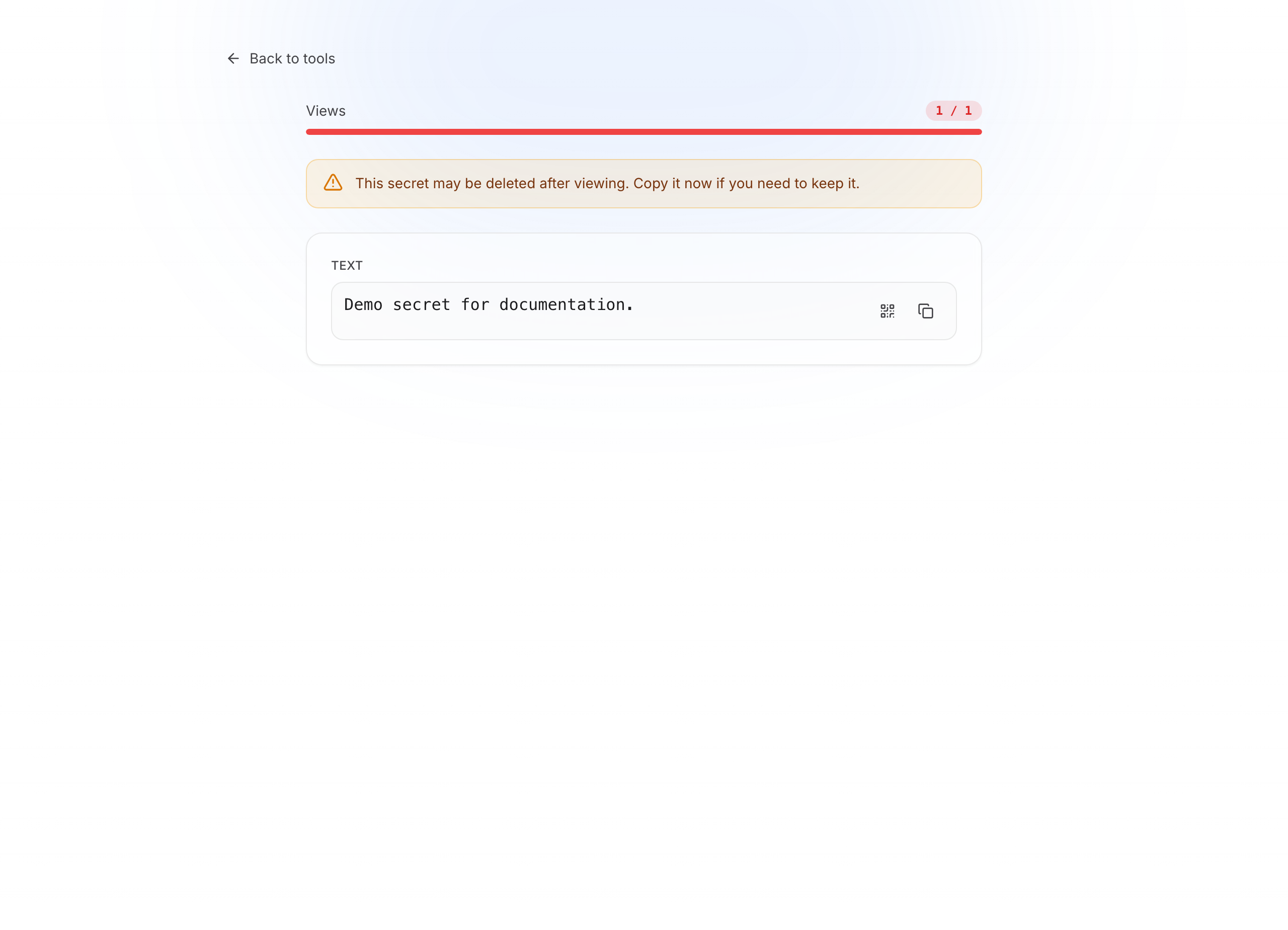
Useful buttons: Copy, QR code of the secret (not the URL).
Revoke a link (without an account)
At the bottom of the create page:
Revocation form
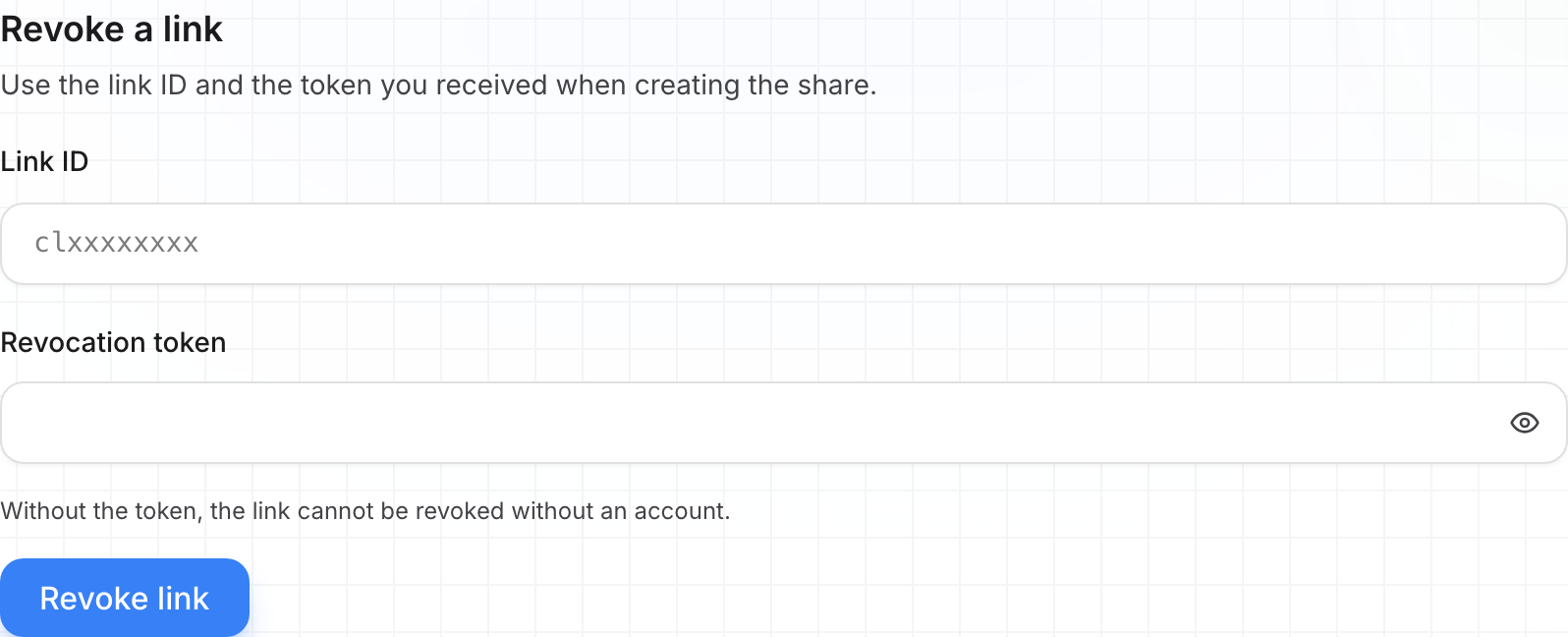
- Paste the link ID (
/s/…part of the URL, or the value shown at creation) - Paste the revocation token
- Click Revoke link
Without the token, anonymous revocation is impossible — create a QubKey account to manage signed-in links.
Common recipient messages
| Situation | What to do |
|---|---|
| Max views reached | Ask the sender for a new link |
| Link expired | Same — create a new share |
| Password required / invalid | Check the password shared separately |
Missing # fragment in the URL | Link was truncated — resend the full link |
From the vault
To share a full entry from the vault (attachments, in-app management), see Secure temporary link.