Daily vault usage
Copy a field, QR share, version history, and favorites — per-entry actions.
Beyond adding and organizing entries, QubKey offers quick actions on each entry: secure copy, ephemeral QR share, version history, and favorites.
See also vault management.
View and edit an entry
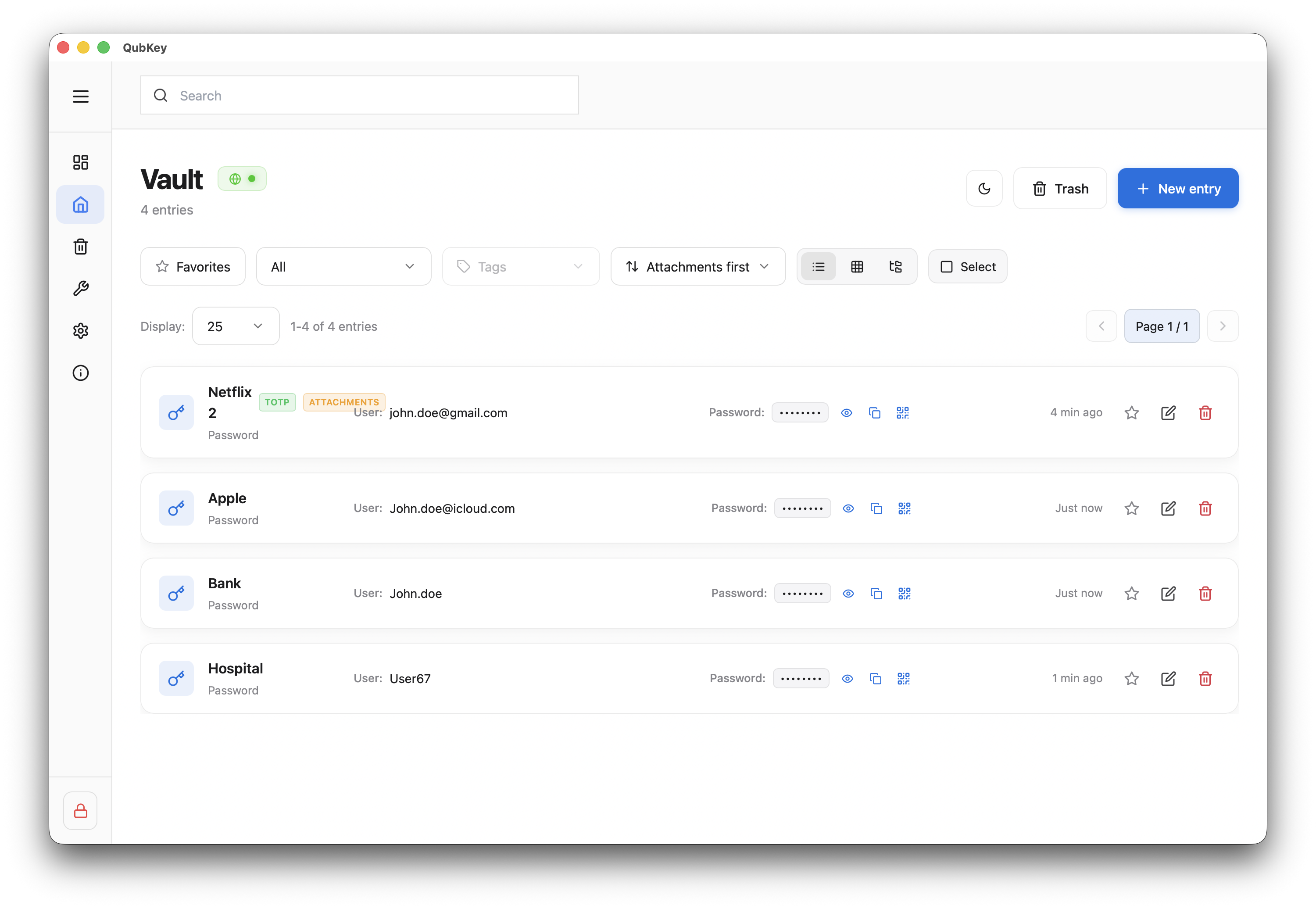
In the vault list, click an entry
Entry list
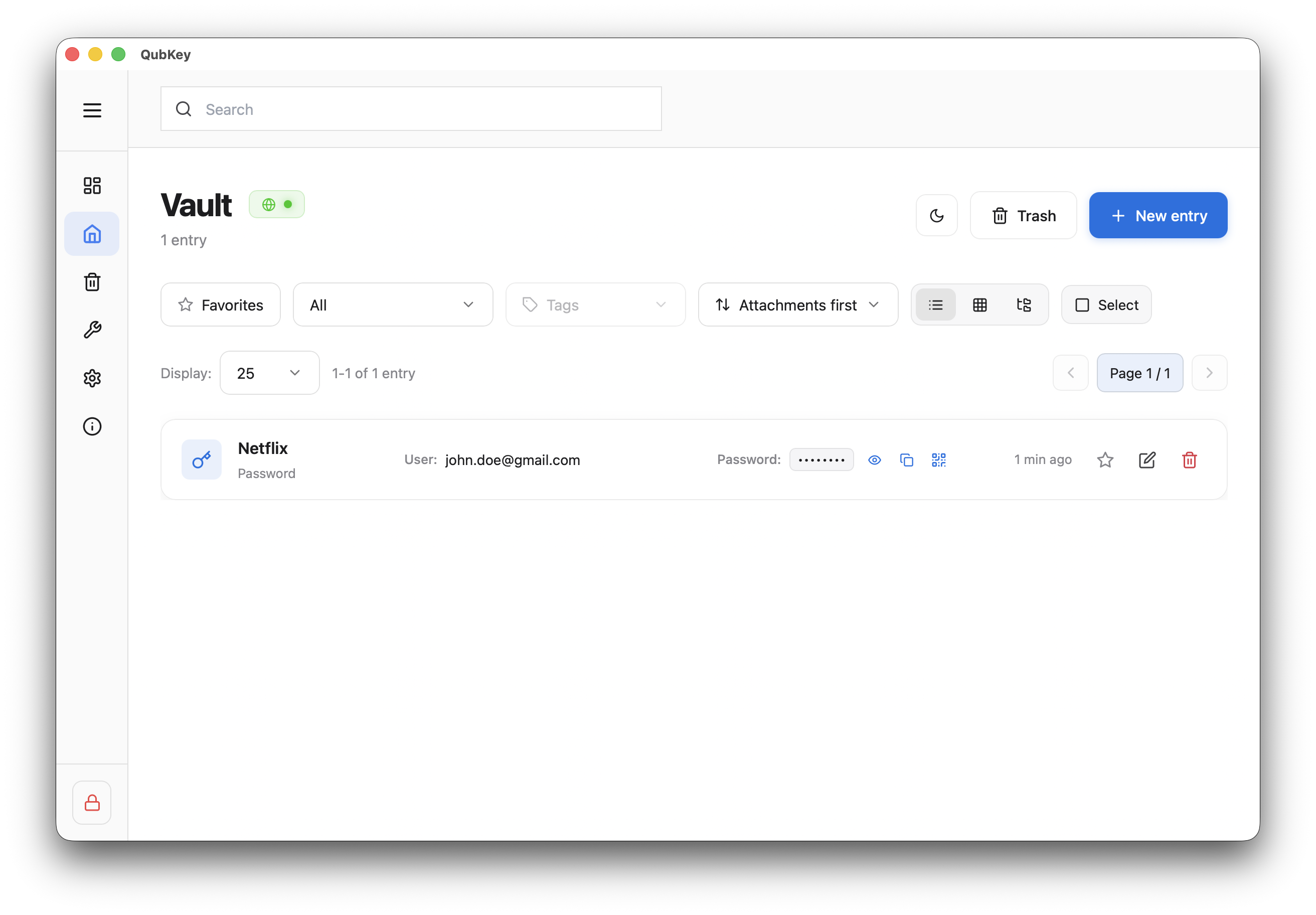
The detail view opens read-only — fields masked by default
Entry detail — read mode
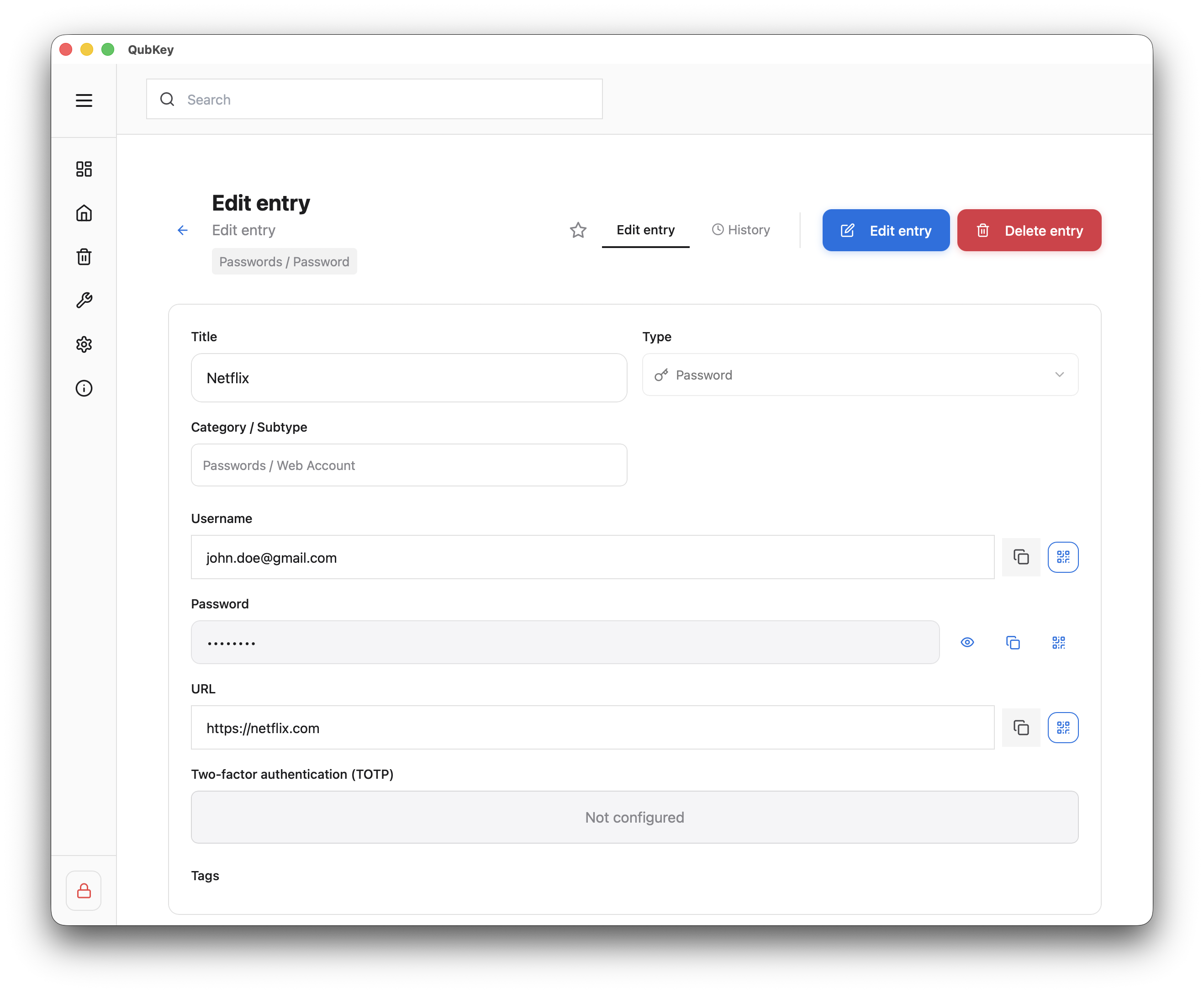
Click Edit (or pencil icon) to switch to edit mode
Edit mode
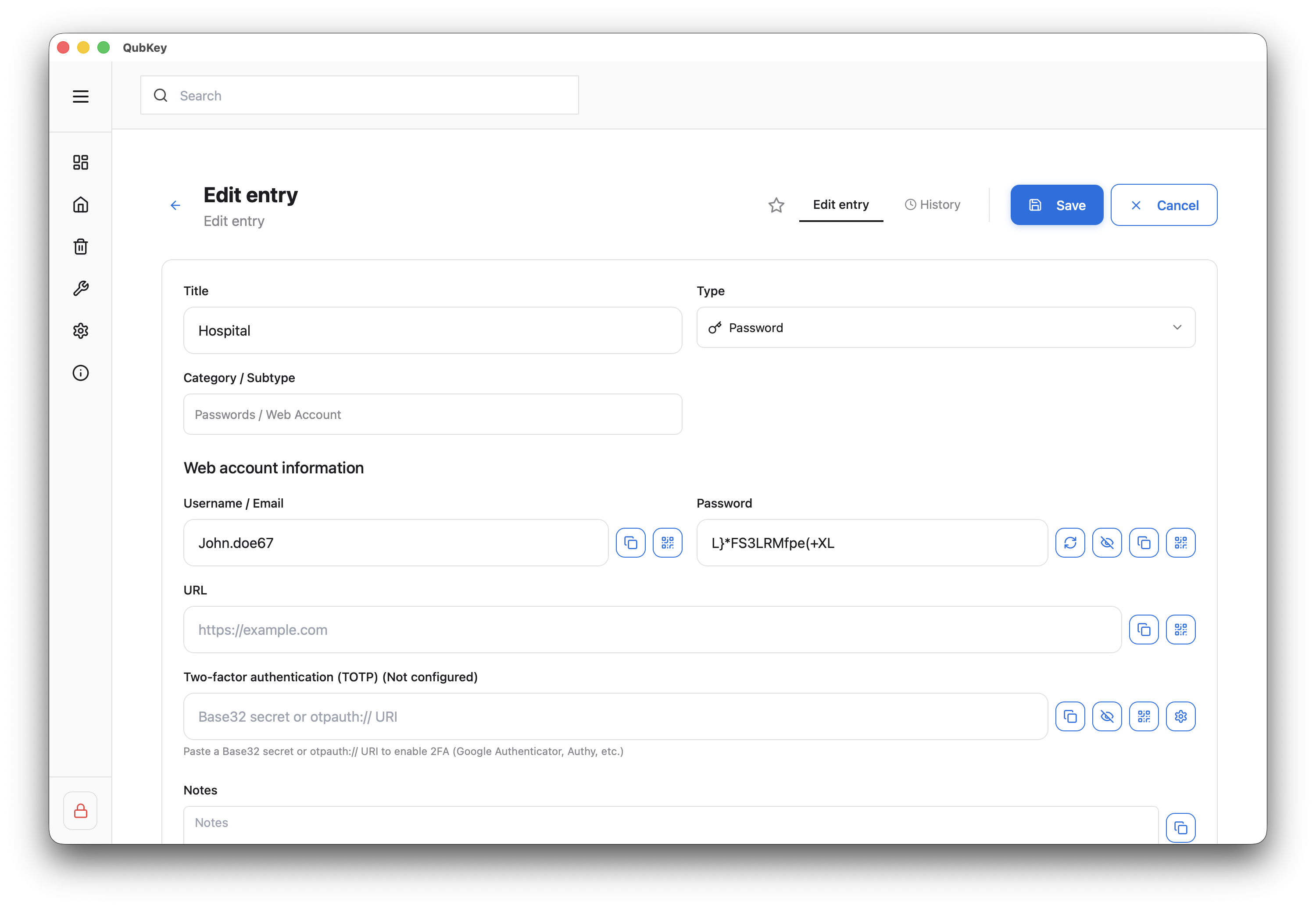
Save or Cancel — each save creates a version in history
Copy a field
On a protected field (password, key…), click the Copy icon
Content is copied to clipboard — auto-cleared after configured timeout
Field copy with clipboard timer
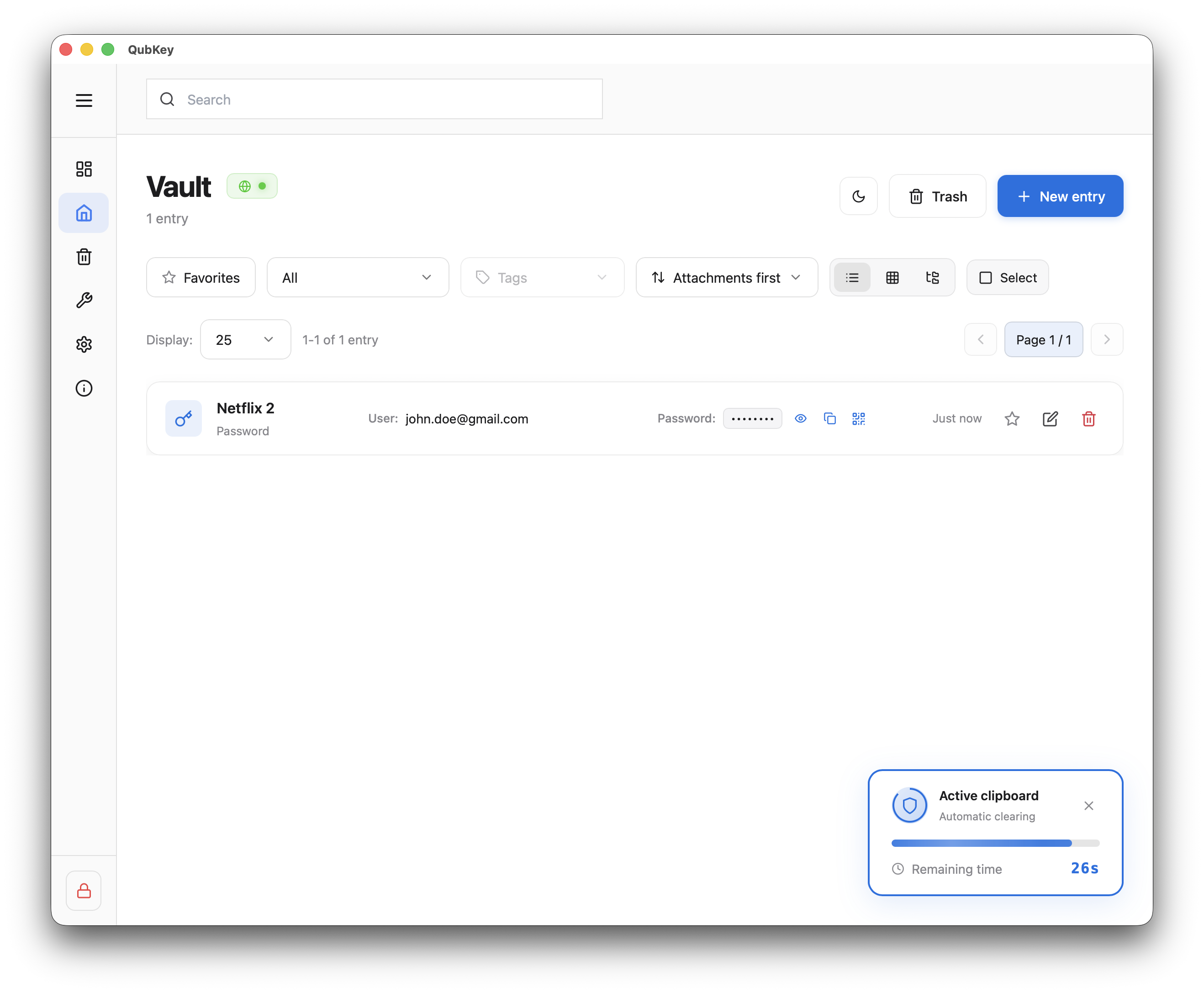
On macOS/Windows, QubKey may use the system secure clipboard
Share via QR code
Start QR share
Next to a copyable field, click the QR icon — a dedicated window opens in the app
QR share button on field
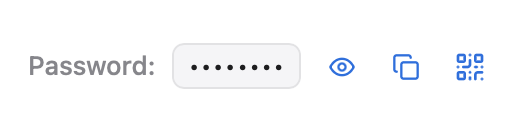
Scan the code
The QR code displays the value in plaintext for ~30 seconds then is cleared from memory (ephemeral storage)
QR window with countdown
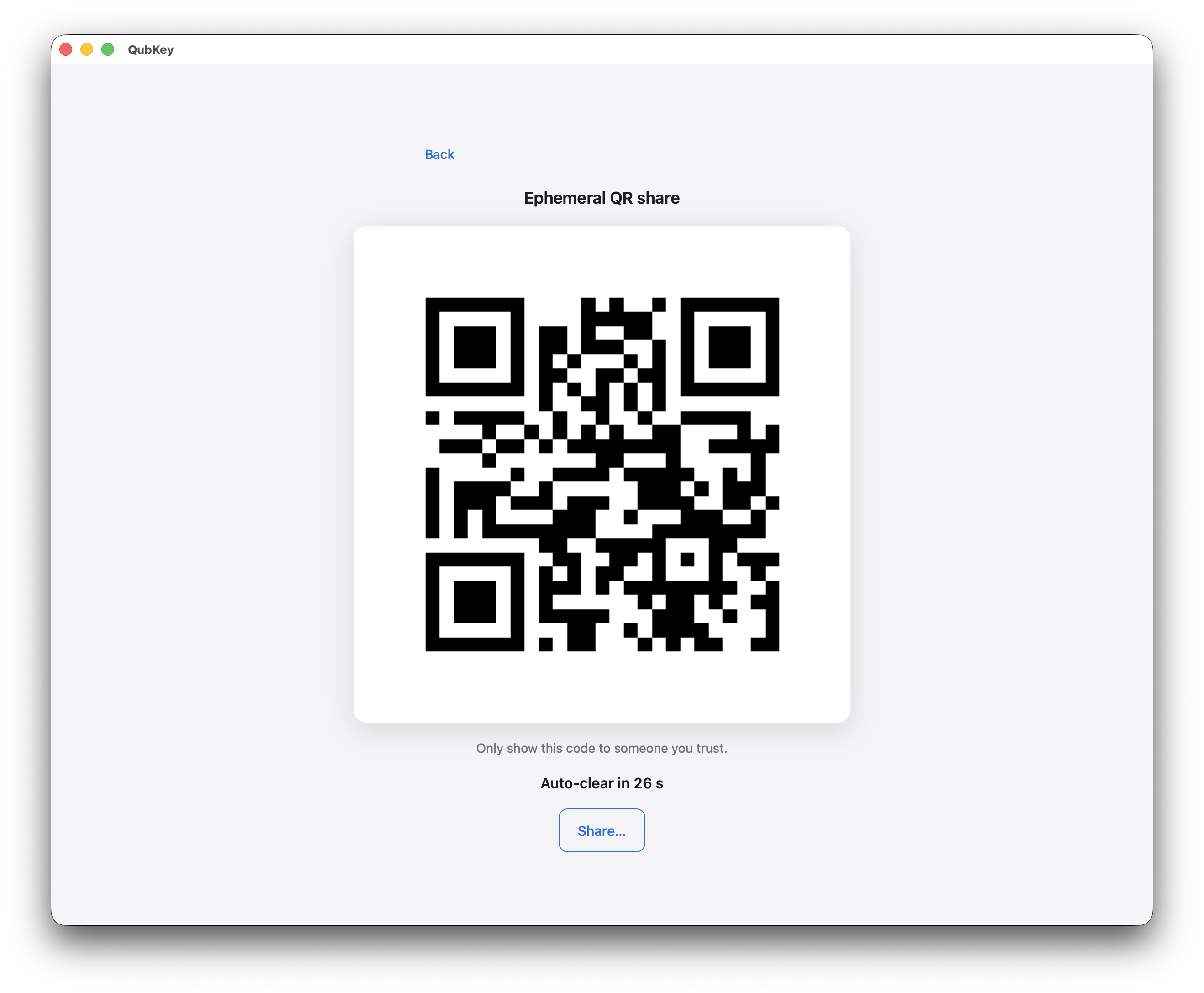
Typical use: transfer a Wi-Fi password or key to a phone on the same local network — no cloud
Limits
Very long payloads (> configured limit) are rejected — use file export for large secrets.
Version history
On the entry detail, open the History tab
Review previous versions (date, changed fields)
Entry history tab
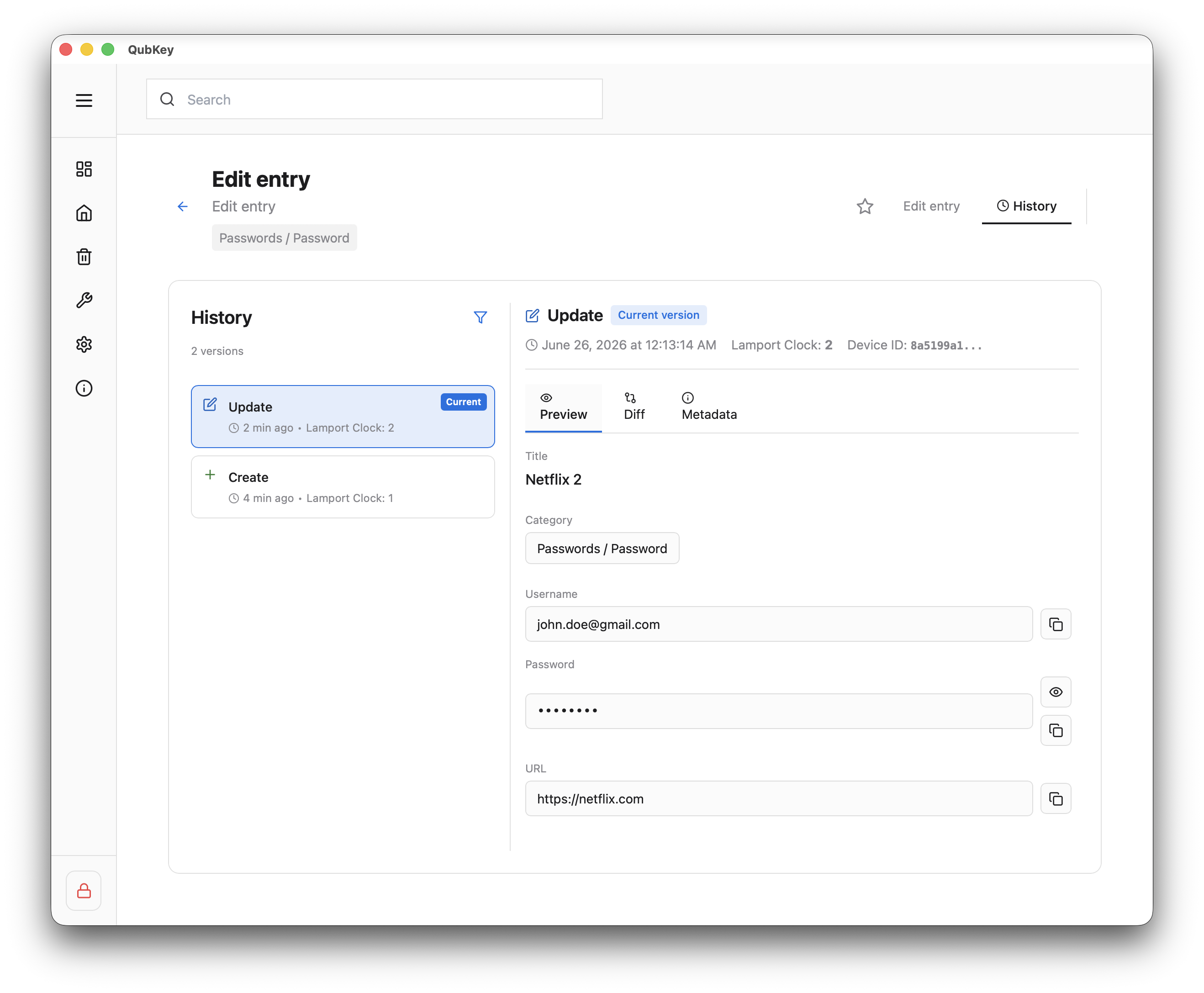
Restore a previous version if needed — a new version is created
Favorites
Click the star on an entry (list or detail) to add to favorites
Favorites section at top of sidebar — quick access
Favorites section