Backup
Local .rkvey.backup backups and OAuth cloud backup (Google Drive, OneDrive, Dropbox, iCloud) — restore and security rotation.
QubKey backups create encrypted copies of your vault — first on disk (.rkvey.backup files), and optionally to your personal cloud (Google Drive, OneDrive, Dropbox, iCloud Drive). This is not multi-device sync and not JSON/CSV export (migration).
Access: Settings → Backup. The vault must be open and unlocked.
Which method?
| Need | Use |
|---|---|
| Full encrypted vault copy (disk) | Local Backup (this page) |
| Offsite copy to your cloud | Cloud backup (OAuth / iCloud) |
| Migrate to another manager | Import/Export JSON/CSV |
| Same vault on multiple devices | Sync |
Automatic backup
Configure auto-backup
Settings → Backup → enable Automatic backup
Auto-backup options
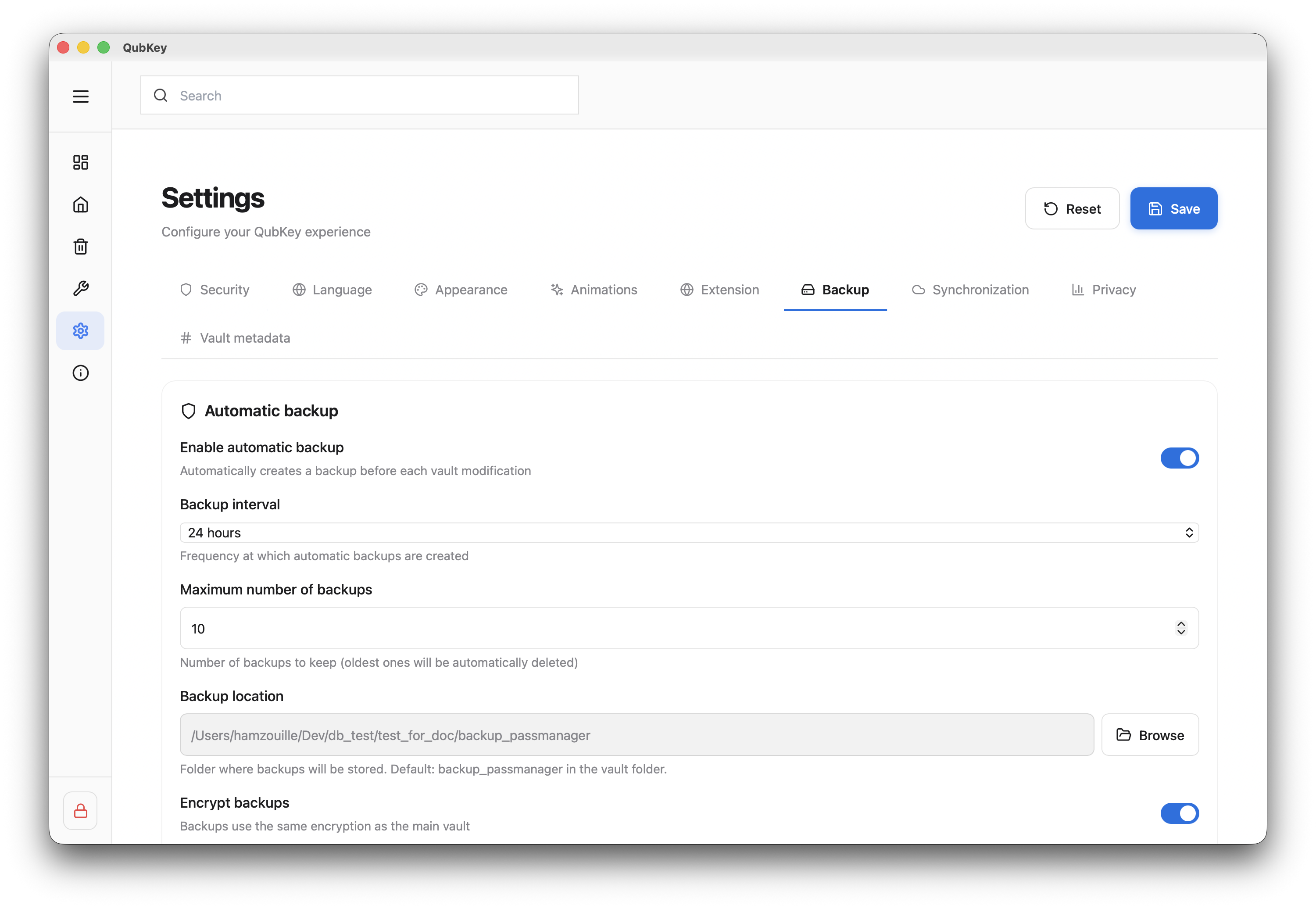
Settings:
- Interval (hours, default 24 h)
- Backup folder location
- Max copies to keep
- Encrypt backups (recommended)
Manual backup
In the Backup tab, click Create backup now
Manual backup button
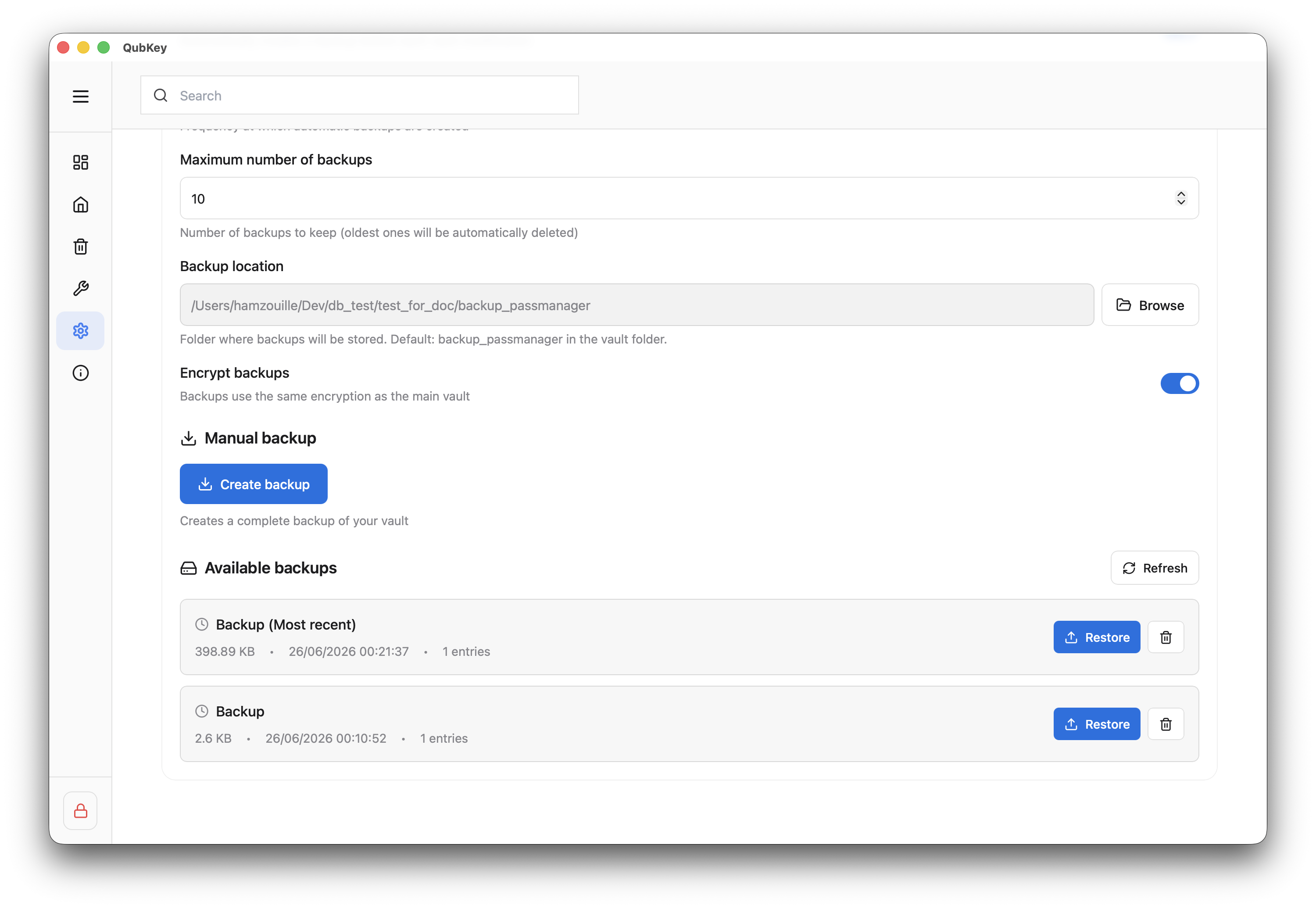
QubKey writes a vault-name_YYYY-MM-DD_HHMMSS.rkvey.backup file in the configured folder
The backup list below shows on-disk backups only (date, size, entry count, checksum when available) — not cloud copies.
Cloud backup (OAuth)
By default, backups stay on this device. From v2.0.0 (macOS), you can also send an encrypted copy to a cloud account you choose. QubKey servers do not carry these files: OAuth runs between the desktop app and the provider (browser + local callback).
| Provider | Auth | Notes |
|---|---|---|
| Google Drive | OAuth 2.0 + PKCE | Copies in the app data space (appDataFolder) — not shown as regular files on drive.google.com |
| OneDrive | OAuth 2.0 + PKCE | Microsoft Graph app folder |
| Dropbox | OAuth 2.0 + PKCE | App folder mode |
| iCloud Drive | Local macOS folder | No OAuth — pick a folder (e.g. iCloud Drive) on this Mac |
Connect an account
Settings → Backup → Cloud backup section → Connect on Google Drive, OneDrive, or Dropbox.
QubKey opens your browser for OAuth authorization (PKCE). After approval, status shows Connected. For iCloud Drive: Choose a folder (no browser).
Upload options
- Upload after each local backup — when a
.rkvey.backupis created on disk, a copy is also sent to connected accounts - Keep a vault copy in the cloud — mirror of the current
.rkveyfile (separate from versioned backups) - Max cloud backups — retention for remote versioned copies
Remote list
Each provider has its own list (Copies on …). QubKey distinguishes:
- Versioned backup — history of uploaded
.rkvey.backupfiles - Current vault copy — single mirror (duplicate mirrors are pruned)
Use Refresh cloud list, Copy vault now, or download / delete a remote entry from the actions shown.
Security & platforms
Encryption: uploaded files remain encrypted vaults / backups — the cloud provider cannot read your secrets in plaintext.
OAuth tokens: the refresh token lives in the macOS Keychain (com.qubkey.oauth), not in the .rkvey file; the access token stays in memory while the vault is unlocked. Disconnecting an account revokes access at the provider (when the API allows) and clears the Keychain.
After upgrading to 2.0.0: if a cloud account was already linked, reconnect it (tokens migrated out of the vault).
Availability: cloud OAuth flow validated on macOS 2.0.0. Windows / mobile parity is in progress — an unavailable service in your build shows a dedicated message.
Complement local backups
3-2-1 rule (also shown in-app): three vault copies, on two kinds of media, with one off this device — typically your personal cloud account via this section. Multi-device sync is not a substitute for offsite backup.
Restore a backup
Choose a backup
In the local list, click Restore next to the desired copy (or download a cloud copy to disk first if needed).
Backup list with Restore
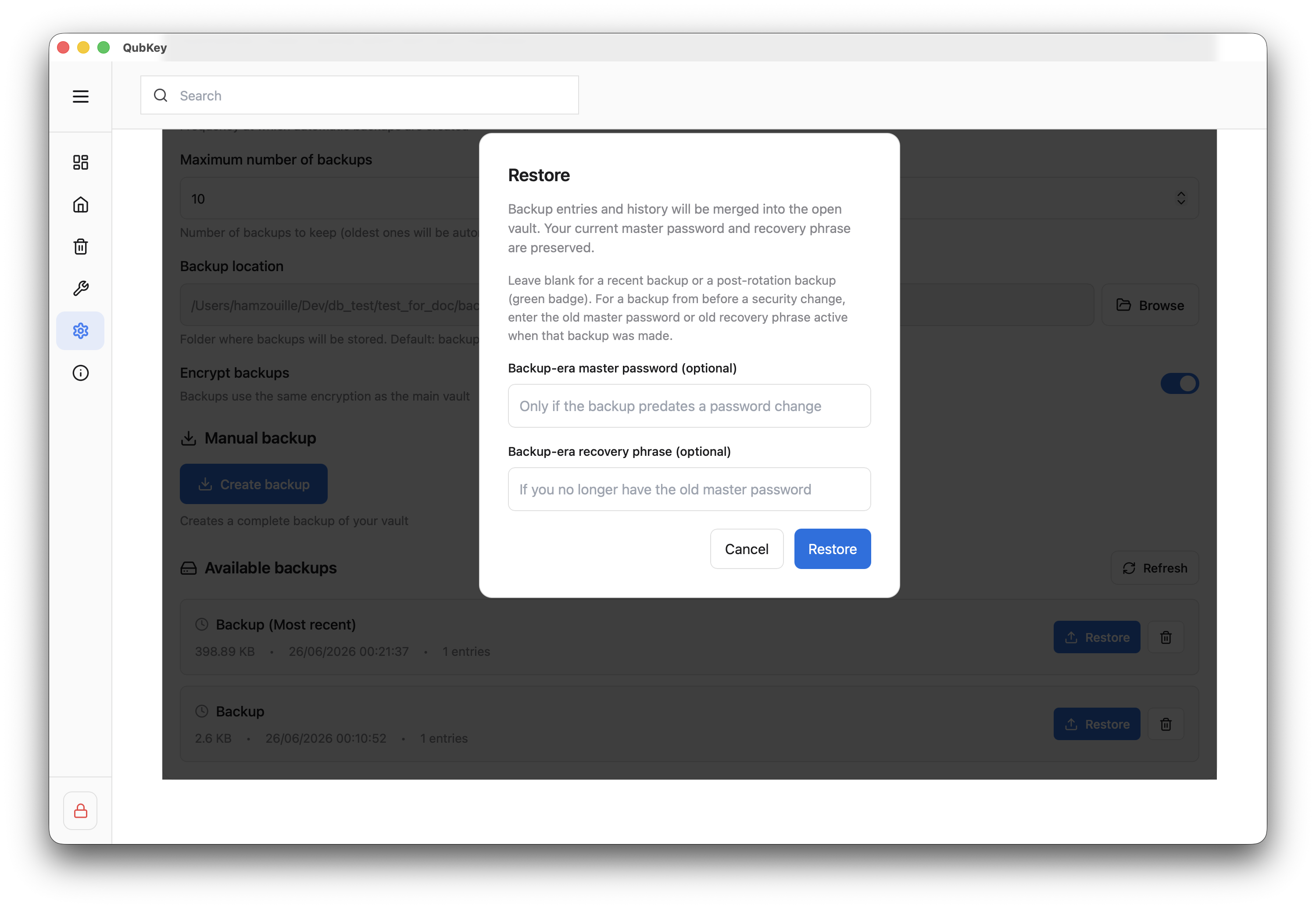
Confirm and authenticate
Confirm in the dialog — enter the vault master password (or recovery key if the backup requires it). Restore replaces the current open vault state.
Delete an old copy
Use Delete on a row — confirmation required. This only removes the .rkvey.backup file, not the active vault.
Security rotation
Password change
On master password change, QubKey may automatically create a backup marked security rotation (security_rotation). Keep it until you verify the new password works.