Migration
Import from another manager, and automatic vault upgrade.
Two topics: importing from Bitwarden, KeePass, 1Password (or CSV/JSON) via Tools → Import/Export, and the automatic upgrade of an older vault file when you open it.
Preparation
Unlock the target QubKey vault
From the old manager, export as JSON or CSV (unencrypted) — keep the file temporarily in a safe place
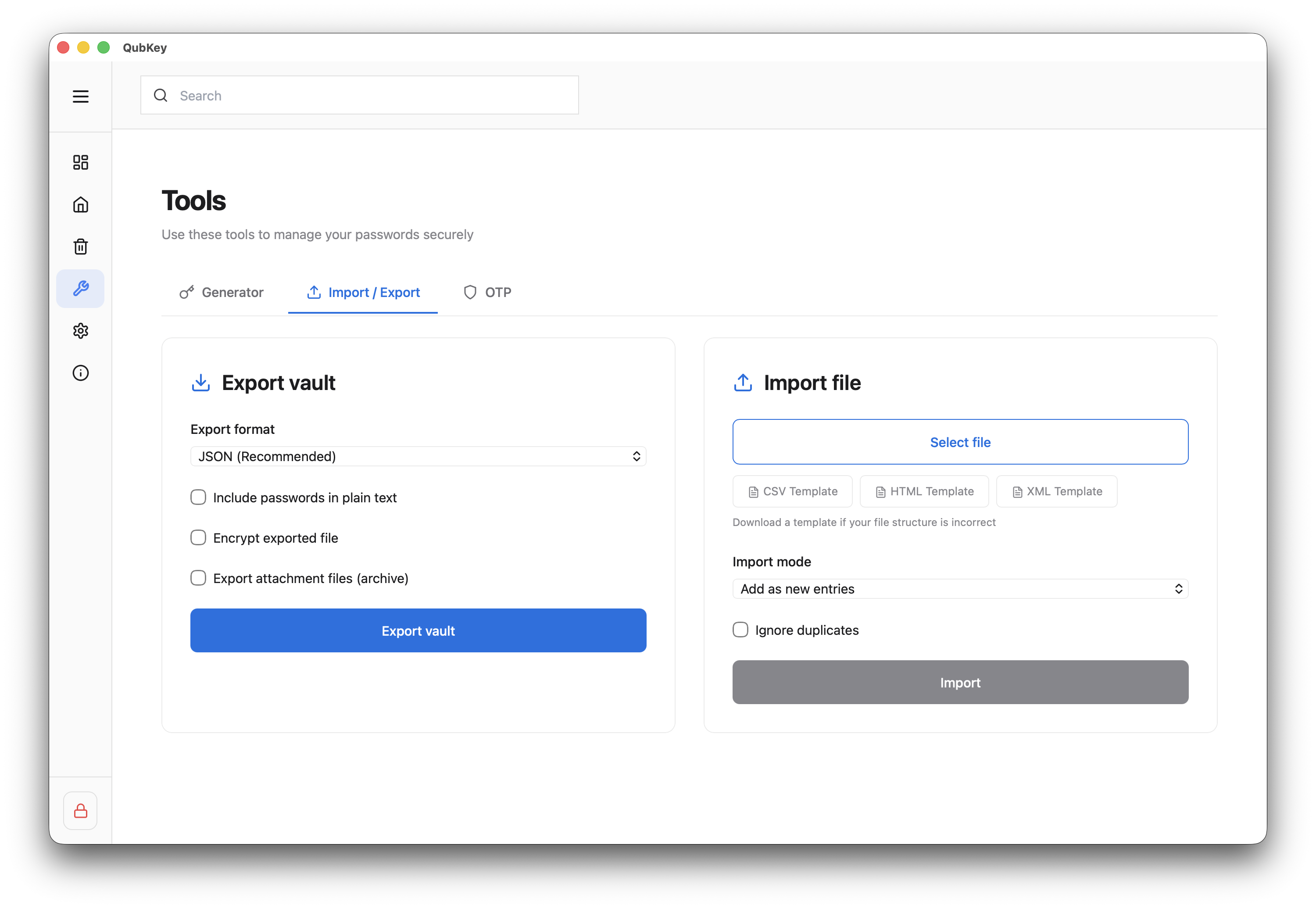
Scenarios by source
| Source | Export format | QubKey import format | Recommended mode |
|---|---|---|---|
| Bitwarden | JSON or CSV | json / csv | Add (merge) |
| KeePass | XML or CSV | xml / csv / keepass | Add |
| 1Password | 1PIF or CSV | 1password / csv | Add |
| Other | Generic CSV | csv | Preview then Add |
Import modes
Replace mode overwrites the entire vault — use only on an empty vault. Prefer Add or Merge to keep existing entries.
After import
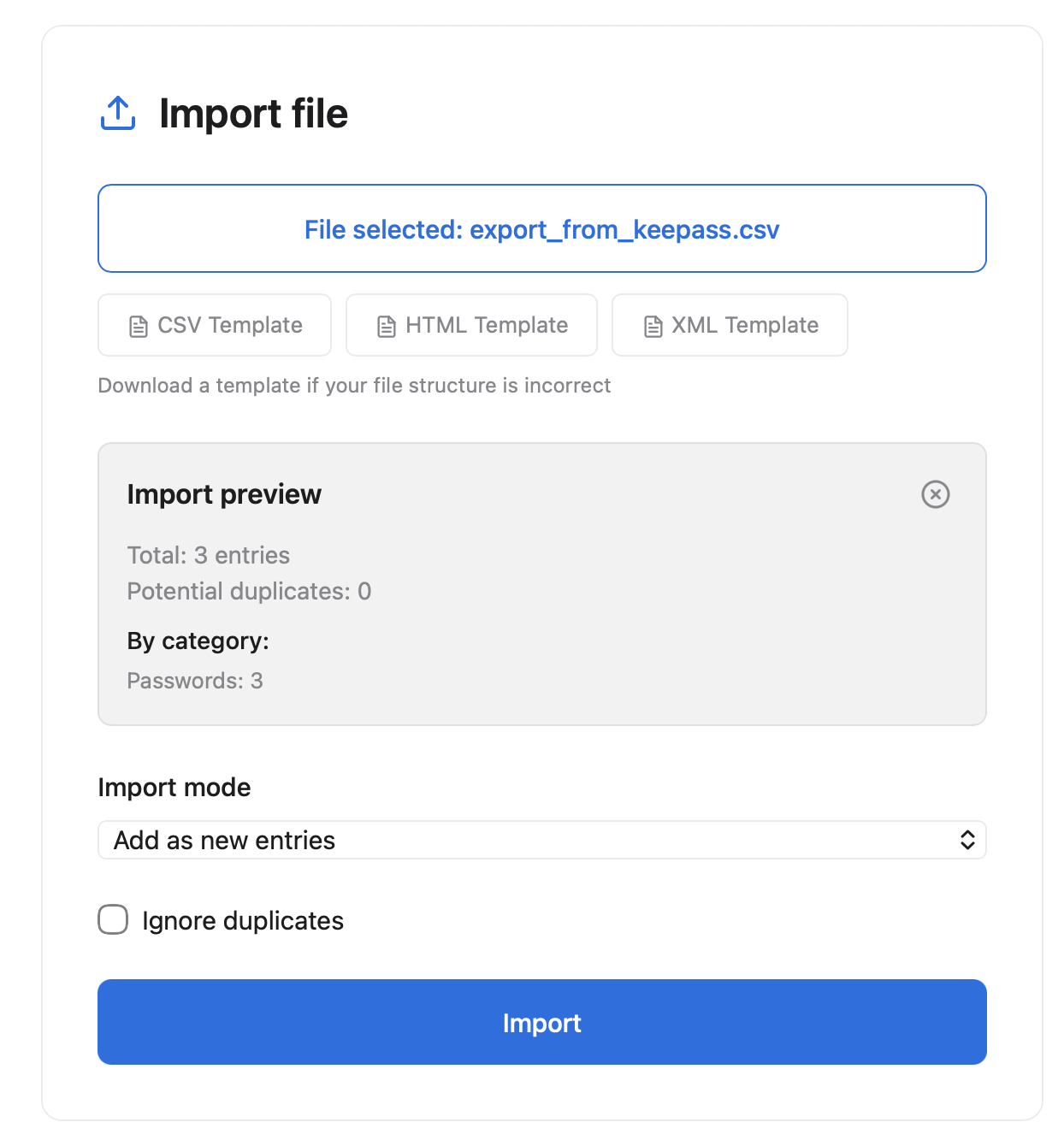
Review the summary (imported, duplicates, errors)
Import summary
Check Password entries with TOTP — reconfigure 2FA secrets if the export omitted them
Verify URLs for extension auto-fill
Delete the plaintext export file after migration
Vault upgrade
When opening an older vault, QubKey may show Vault upgrade: conversion for faster, safer decryption.
- A backup copy is created before conversion
- A progress bar shows
X / Yentries - On failure, an error message appears and the backup remains available
Multi-device sync
After upgrade, sync only works with devices on the same format. Open the vault (and finish the upgrade) on each device before syncing.