Import / Export
Export to JSON, CSV, KeePass… and import from another manager — modes and preview.
QubKey lets you export entries to other formats (migration) and import from KeePass, Bitwarden, 1Password, CSV, JSON, etc.
The flow is in Tools → Import/Export. Full .rkvey file backups are managed separately in Settings → Backup.
Export entries
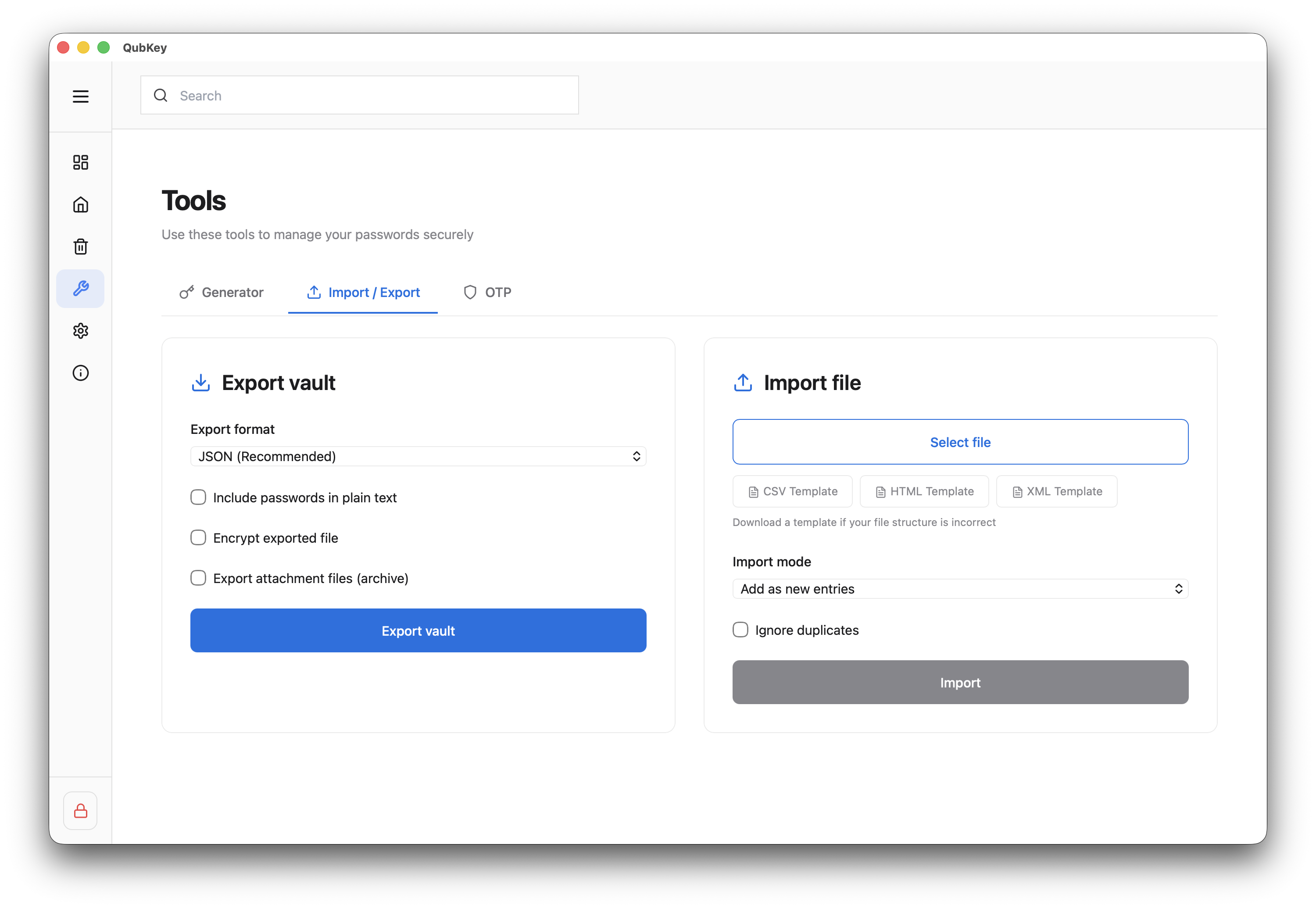
Choose format
Select target format: JSON, CSV, XML, HTML, KeePass, 1Password, Dashlane, Enpass, RoboForm, or Password Safe.
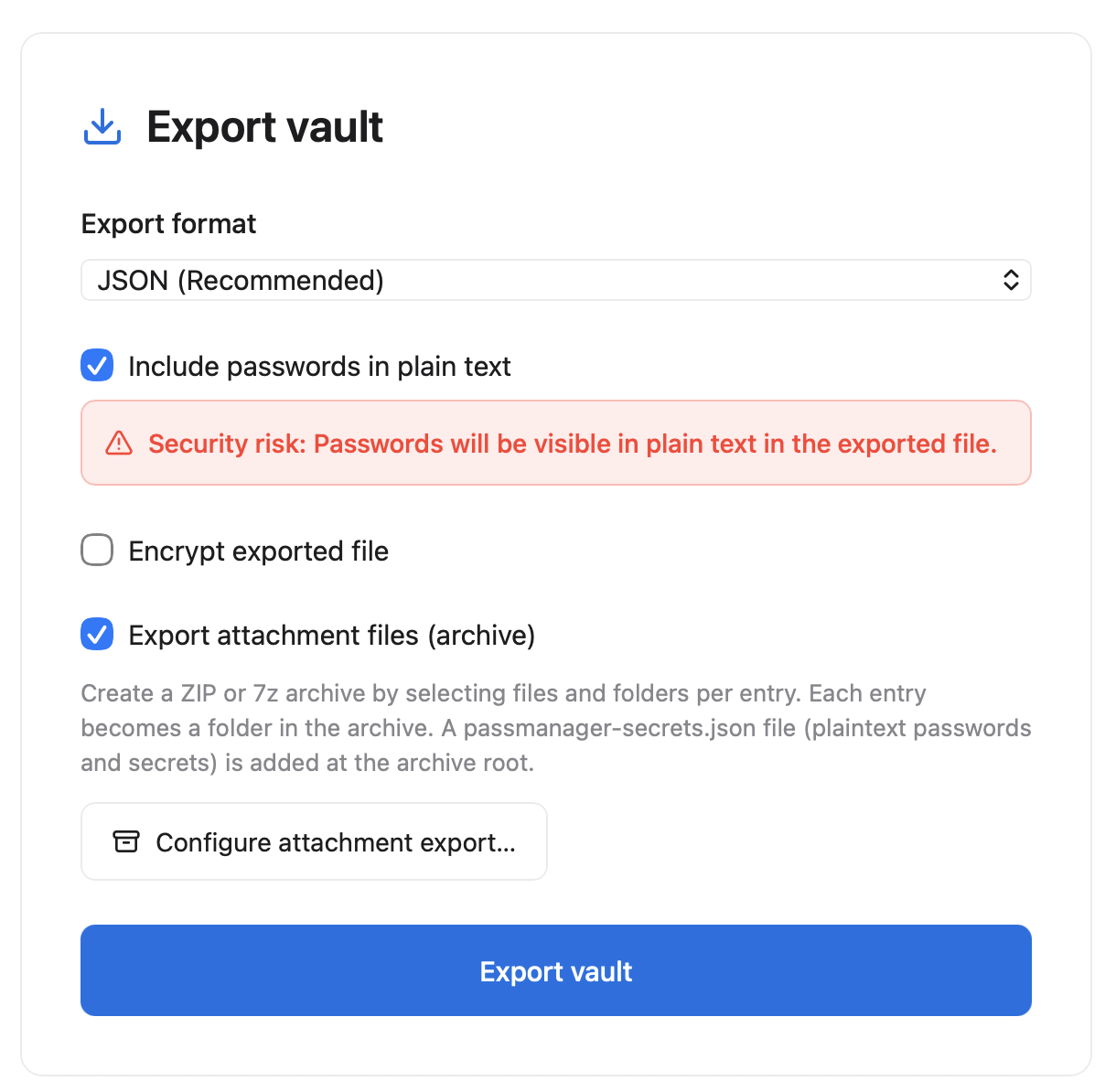
Options
- Include passwords: check only if needed — file will be plaintext
- Encrypt export: optional, with dedicated password
Export options
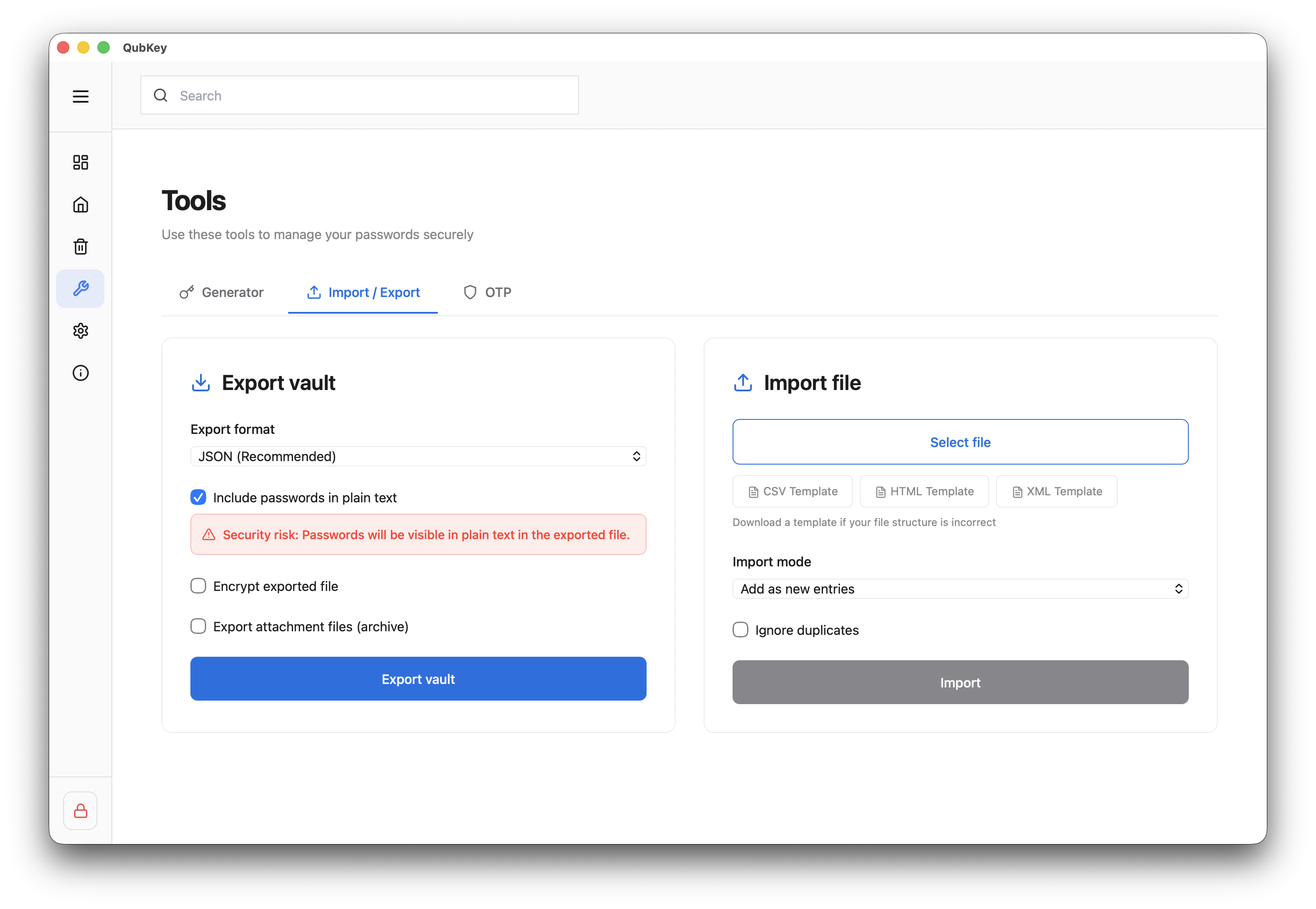
Run export
Click Export → choose location in system dialog → wait for progress bar
Exported JSON file
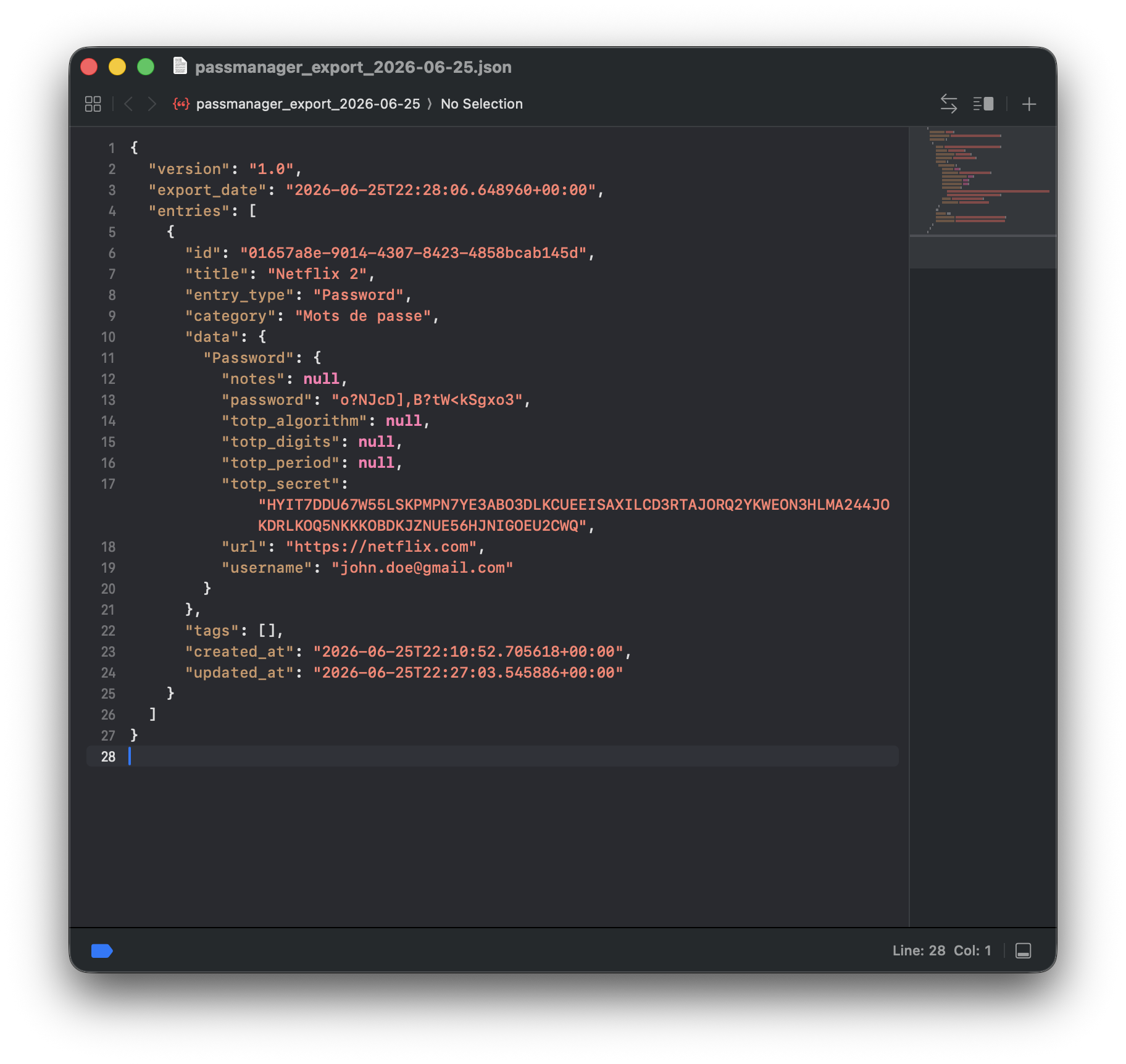
Delete the exported file after use if it contains plaintext passwords.
Import entries
Import mode
Three modes (confirmed in ImportExport.tsx):
| Mode | Effect |
|---|---|
| Add | Merges new entries |
| Merge | Updates detected duplicates |
| Replace | ⚠️ Replaces entire vault — irreversible |
Import mode selector
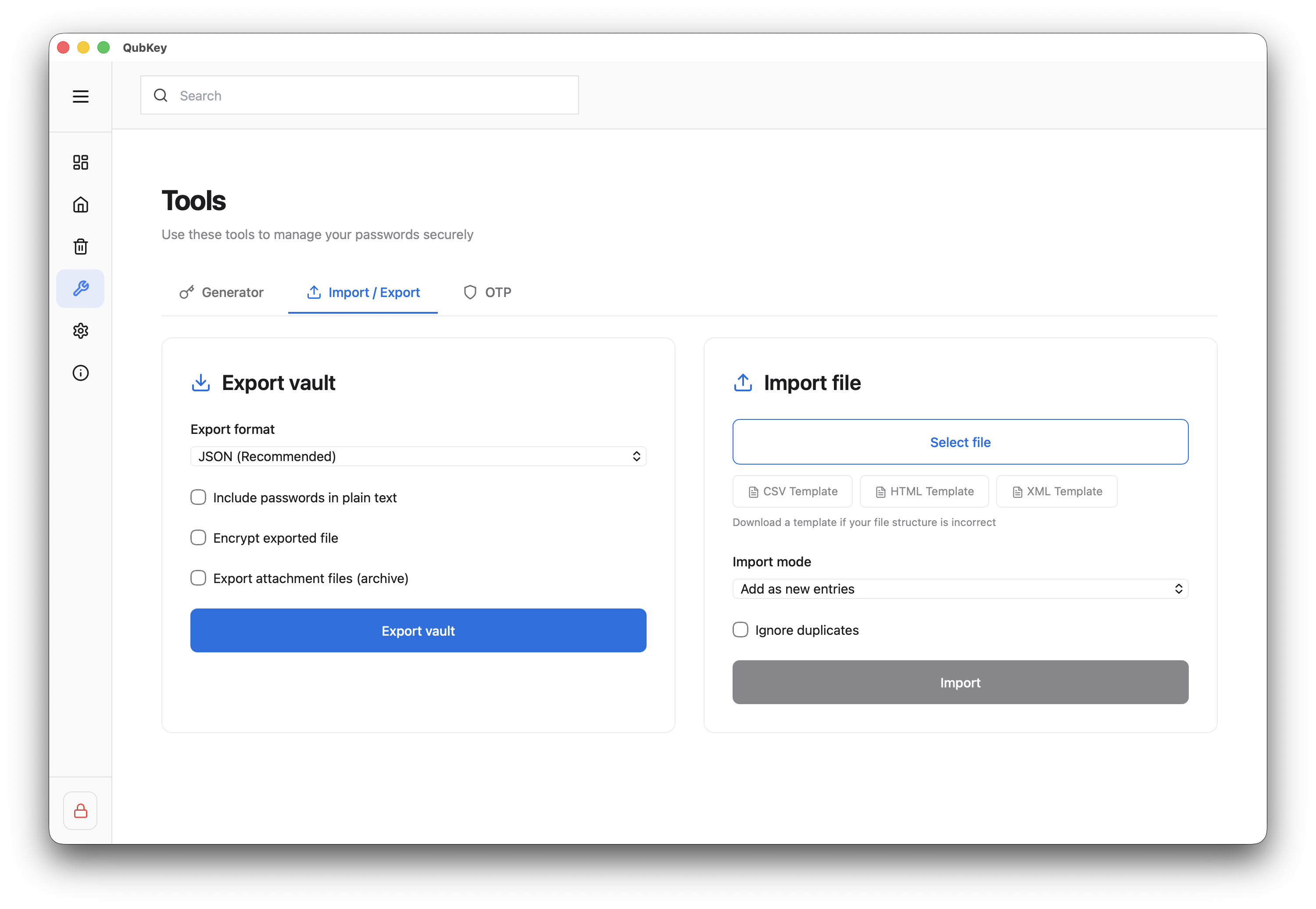
Preview
Click Preview — QubKey shows entry count, potential duplicates, and a sample
Pre-import preview
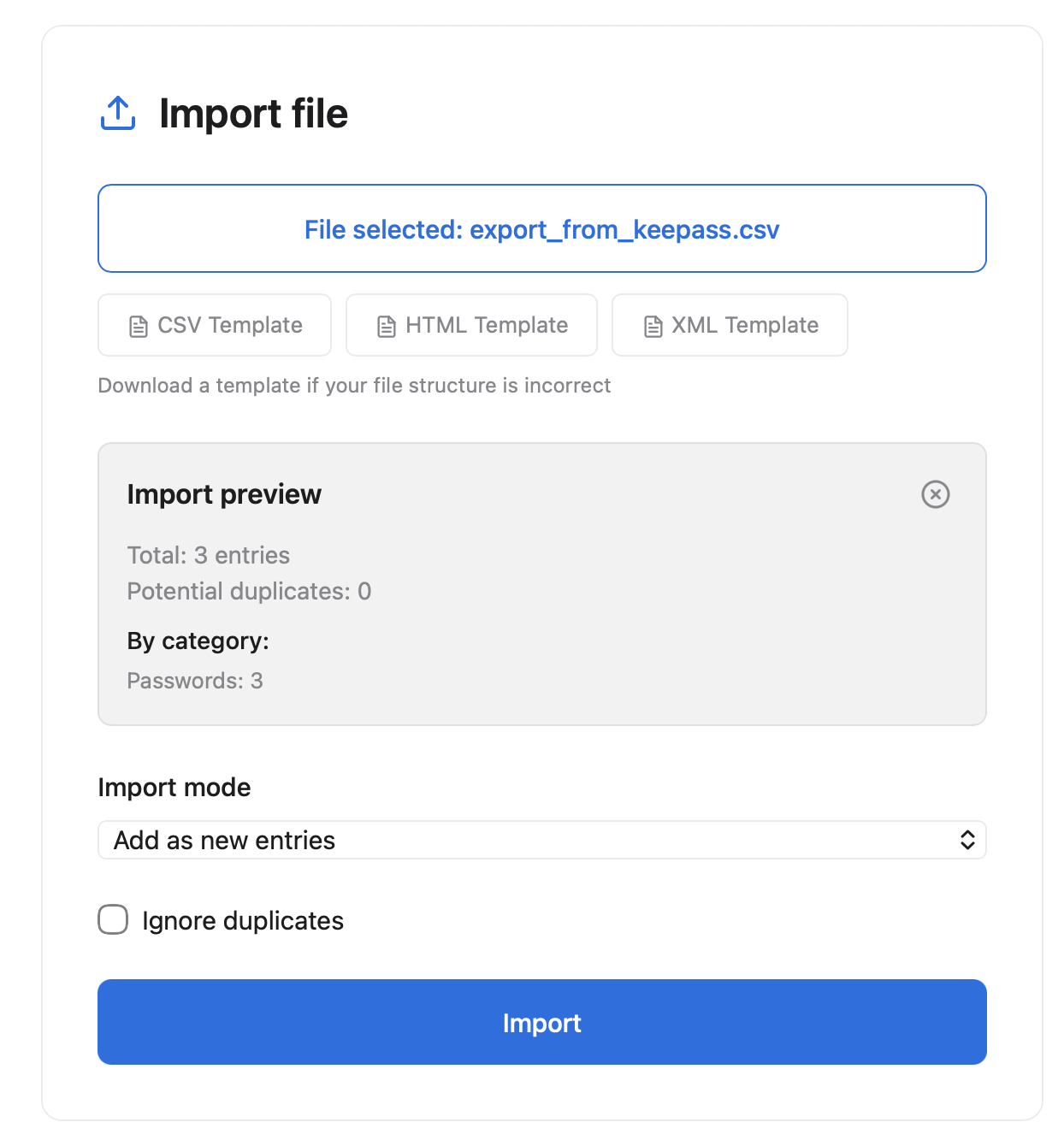
Confirm import
Confirm → progress bar → summary (imported, duplicates, errors)
Supported formats
| Format | Export | Import | Typical use |
|---|---|---|---|
| JSON | ✓ | ✓ | Generic migration, scripts |
| CSV | ✓ | ✓ | Spreadsheet, third-party tools |
| XML / HTML | ✓ | ✓ | KeePass / browser exports |
| KeePass | ✓ | ✓ | From/to KeePass |
| 1Password | ✓ | ✓ | 1Password migration |
| Dashlane / Enpass / RoboForm / Password Safe | ✓ | ✓ | Other managers |
Attachments
Documents
Document entries may include attachments. An Export attachments button (archive) is available in the export section if attachments exist in the vault.
Attachments export
Import from a browser (macOS)
On QubKey desktop for macOS, the Import from a browser assistant reads locally saved passwords (Chrome, Edge, Brave, Opera, Vivaldi, Firefox) and guides CSV export for Apple Passwords.
Imported entries are filed automatically:
Every imported entry (browser or file) leaves a trace in the entry history (“Imported from…”), synced across your devices.
.rkvey backup
Do not confuse
For a full encrypted vault backup (.rkvey or .rkvey.backup file), use Settings → Backup — not JSON/CSV export.
See also the Settings guide.