Vault management
20 entry types (EntryType), B-Tree index, import/export, security dashboard, TOTP, and history.
The QubKey vault stores entries in a hierarchical manner with folders, tags, and favorites. Each entry is individually encrypted with its own HKDF-derived key — modifying one entry does not affect others.
Every entry — regardless of EntryType — can hold encrypted attachments (files and folders).
The model supports 20 entry types (EntryType in models.rs) across six EntryCategory buckets.
Related guides: Daily usage (copy, QR, history) · Trash · Dashboard
Entry types
| Category (EntryCategory) | Types (EntryType) | Description |
|---|---|---|
| Passwords | Password, SSHKey, PGPKey, TokenLogin, Passkey, RecoveryCodes | Website or app password with optional TOTP. |
| Financial | CreditCard, BankAccount, CryptoWallet | Payment card PAN, expiry, and CVV. |
| Identity | NationalID, Passport, DriverLicense, HealthID, Profile, ContactAddress | Government-issued national ID card. |
| Note | Note, RecoveryPhrase, ConfigSnippet | Long text note body. |
| Document | Document | Embedded file attachments (single or multiple) with legacy mirror fields. |
| Device access | WiFi | Wireless network name and PSK. |
Each type is documented in the 20 entry types catalog — EntryData schema, protected fields, and UI labels.
Add an entry
On save, QubKey serializes the entry, encrypts it with a unique key (HKDF), updates the B-Tree index, and writes to the WAL before atomic commit:
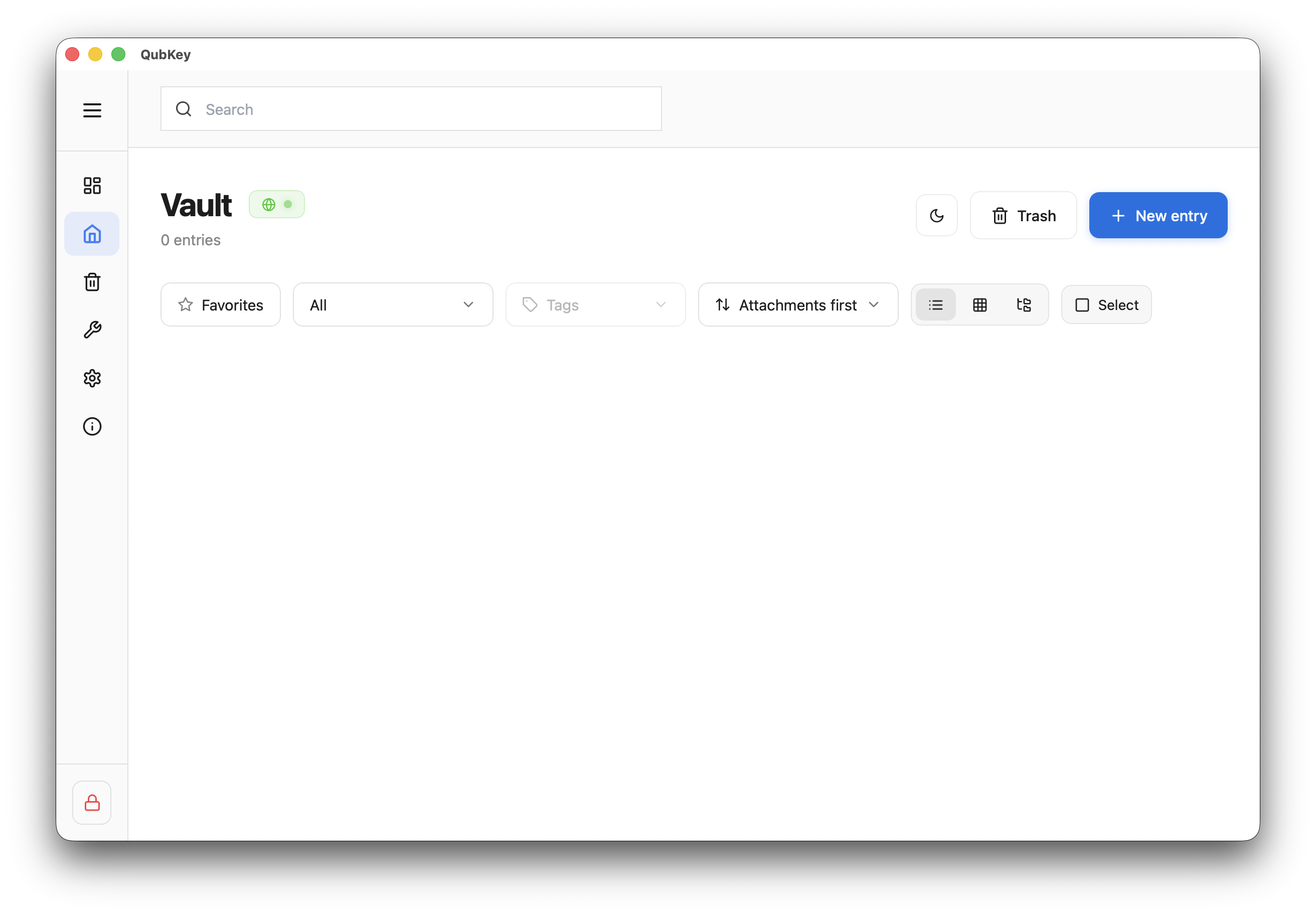
Click + to create an entry
New entry button
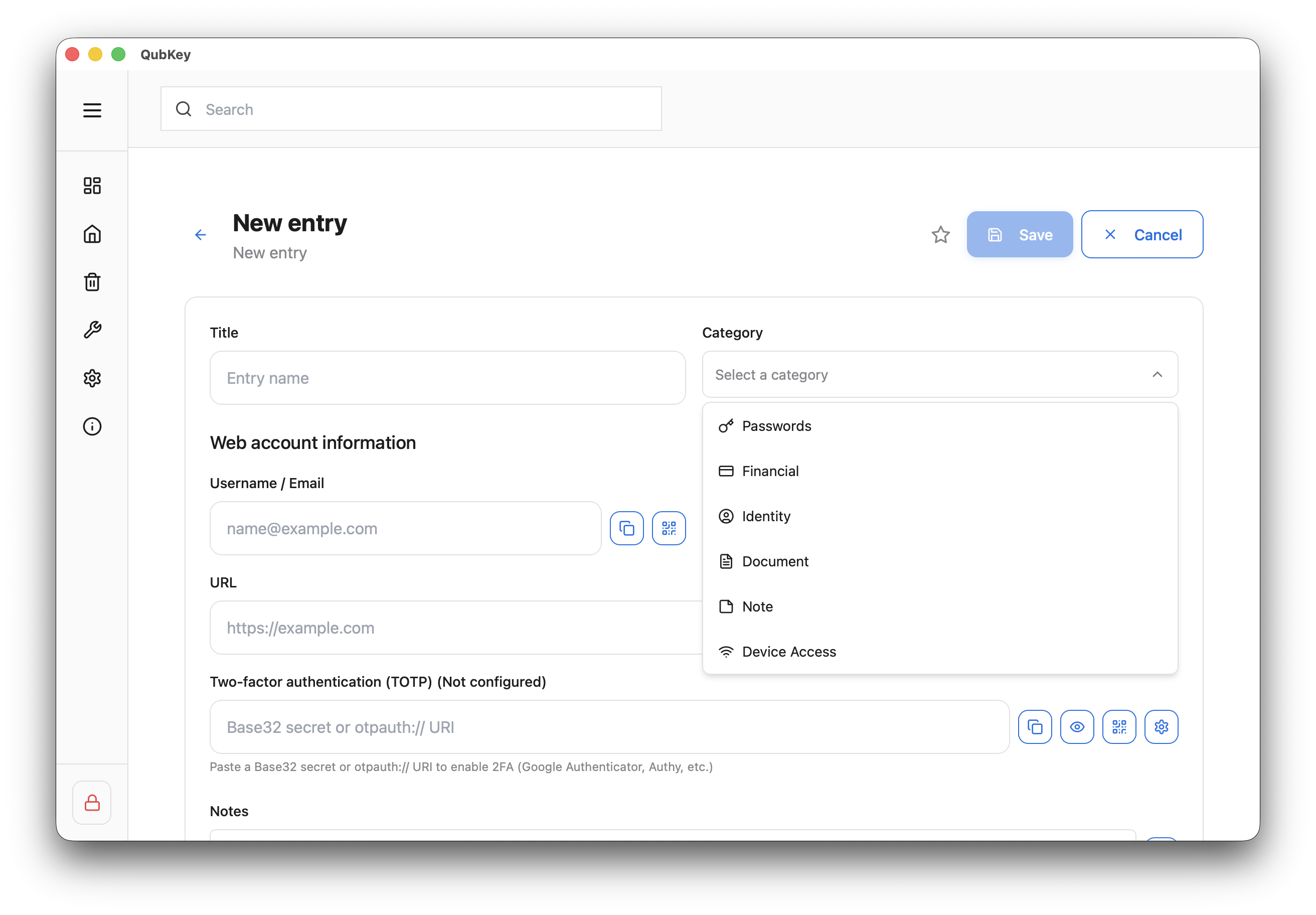
Choose the entry category
Entry category selector
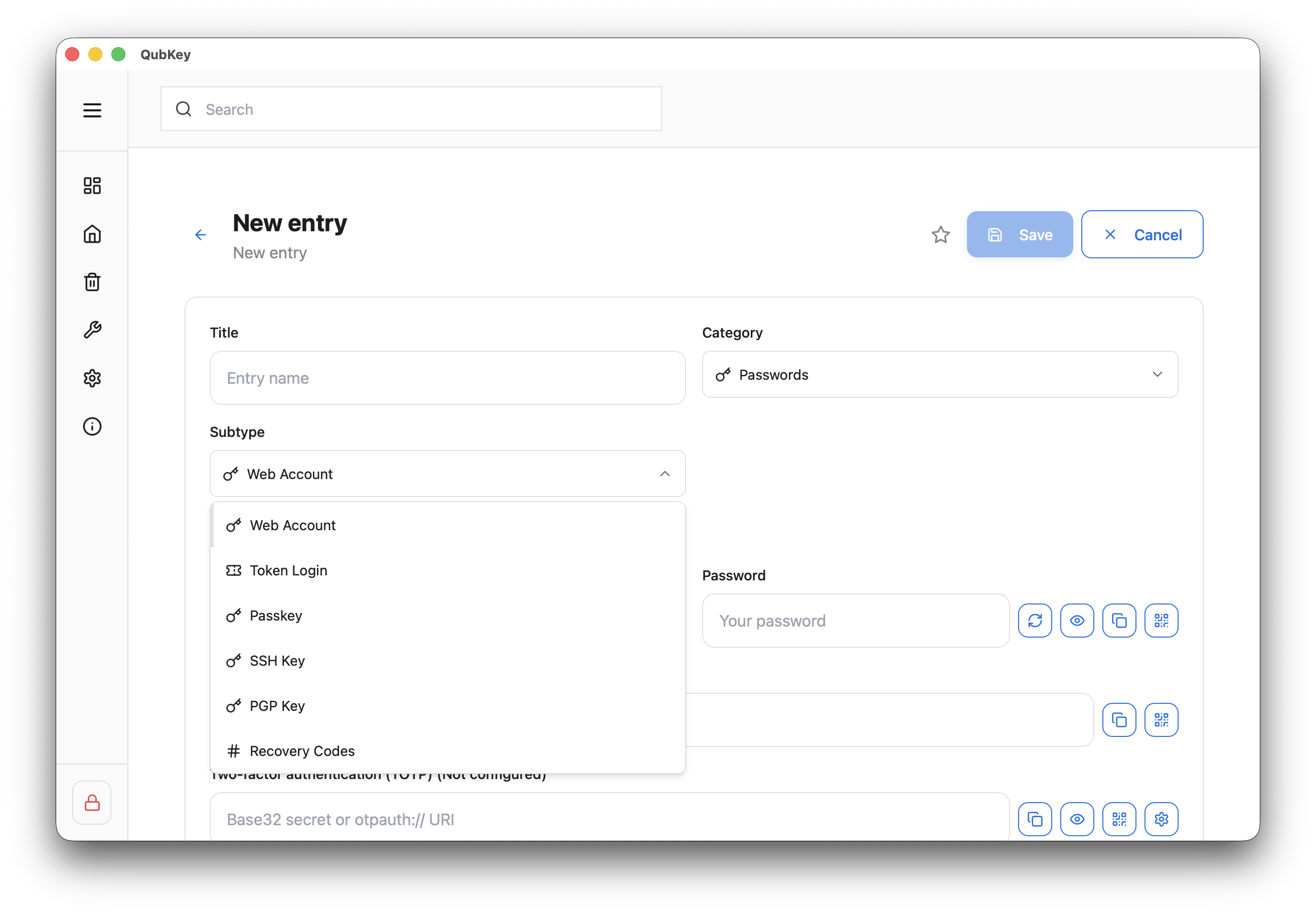
Select the entry type
Entry type selector
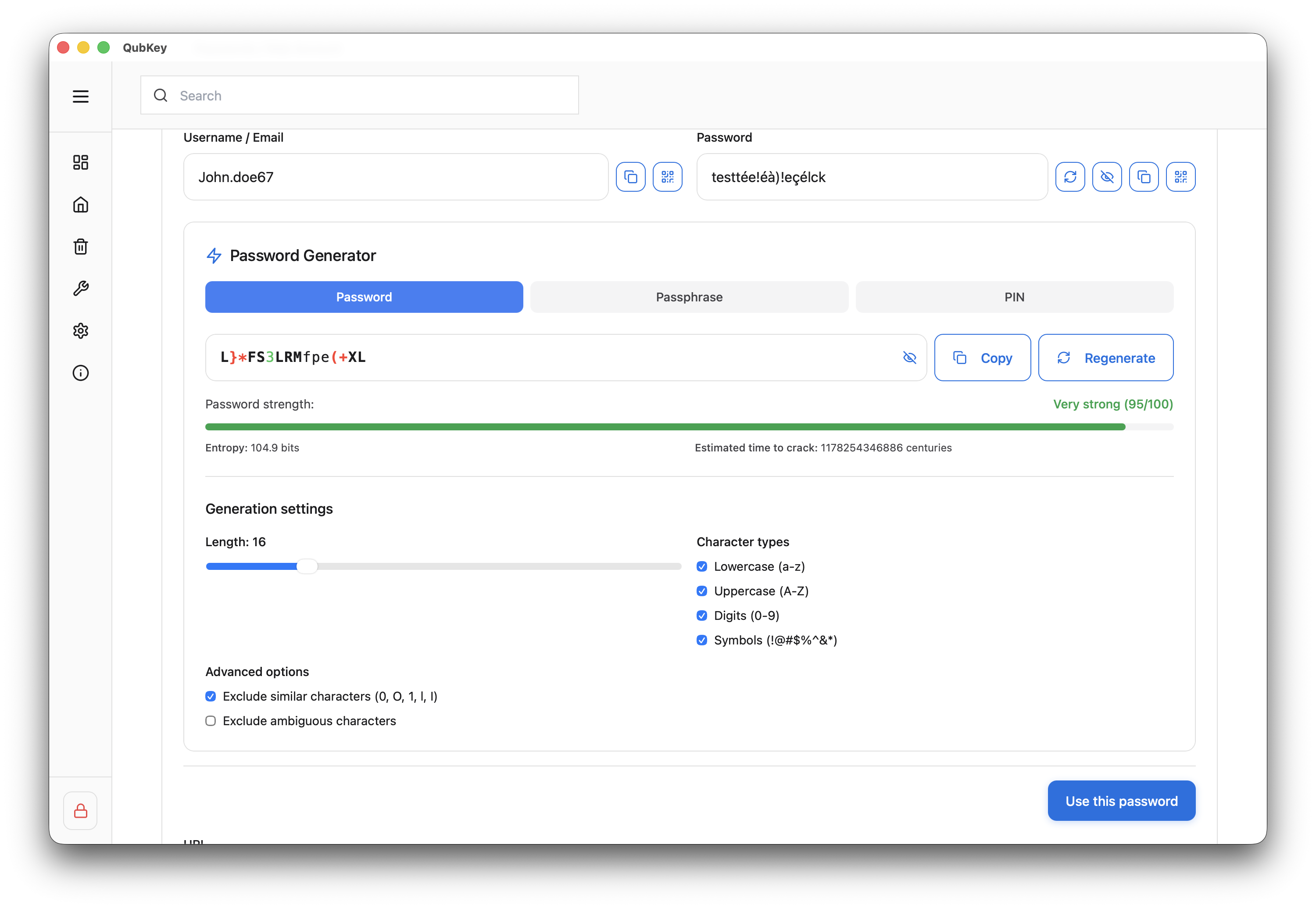
Fill in the fields — the generator is accessible via the 🎲 icon
Inline generator on entry
Add attachments (drag-and-drop) — available on all entry types
Add tags and choose a folder
Save — the entry is encrypted and indexed
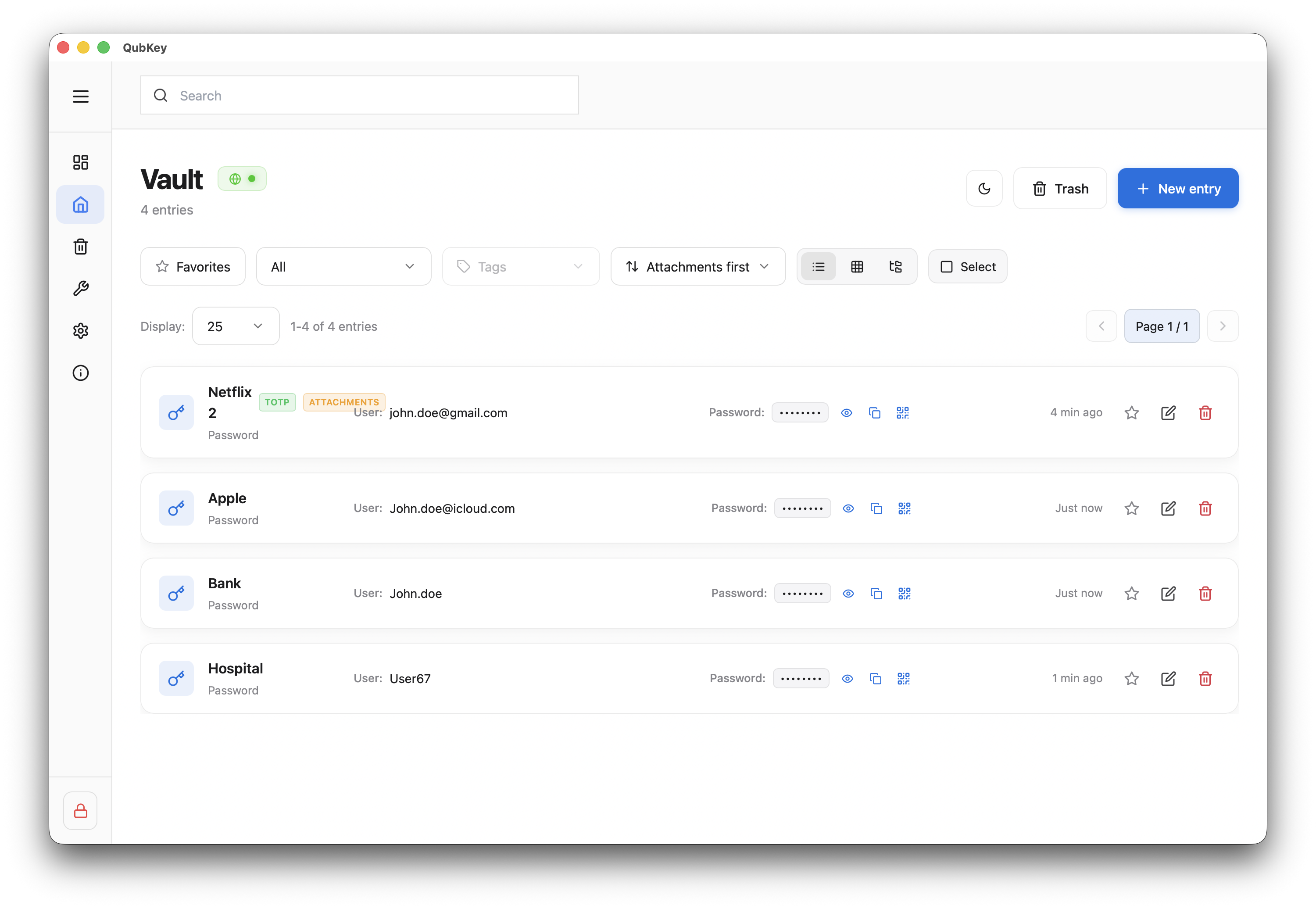
Entries saved in vault
Organization
Search
The toolbar above the list provides access to trash, favorites, and filters by type or tag.
Vault toolbar
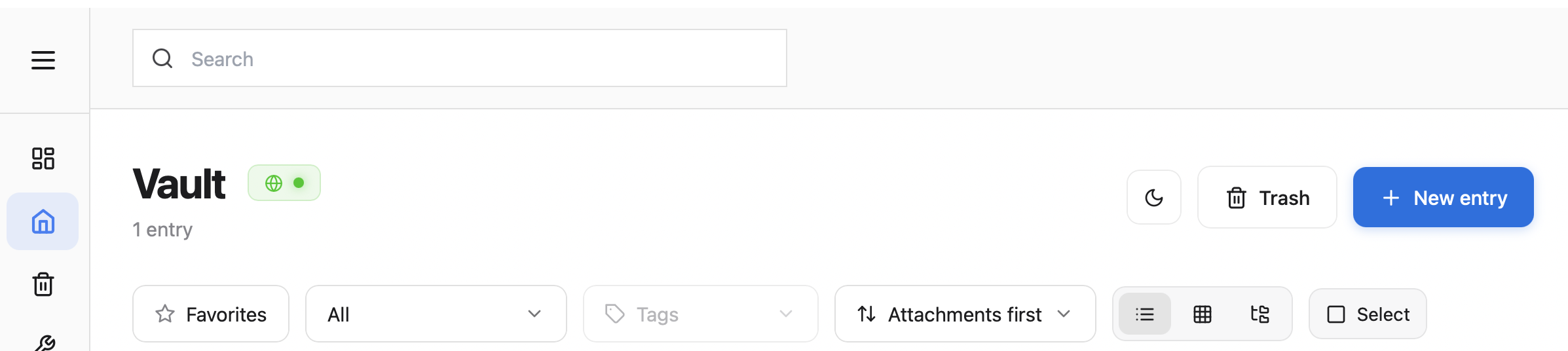
The search bar filters visible entries by title and tags (partial match, case-insensitive). Combine with the selected folder, type filter, a tag, or favorites.
Vault search bar

| Filter | Type | Description |
|---|---|---|
Titre / Tags | text | Search entry title and tags |
Dossier | selection | Limits to entries in the active explorer folder |
Type | EntryType | Filter by entry type (Password, Note, …) |
Tri | toolbar options | Sort by name, date, or type (sort selector) |
Security dashboard
The security dashboard analyzes your vault and flags areas for improvement. Each metric suggests a concrete action:
Weak passwords
Entropy < 60 bits — Action: regenerate via generator and update the account
Reused passwords
Same password on multiple entries — Action: create a unique password per site
Old passwords
Unchanged for > 90 days — Action: plan periodic rotation
Coming soon
Have I Been Pwned (known breach exposure) checking is planned but not available in the current app version. Until then, rotate reused passwords flagged by the dashboard.
Export / Import
Export workflow:
- File → Export
- Choose format:
.rkvey— full encrypted vault (recommended for backup).json/.csv— migration to another manager
- Save to a secure location
Warning
JSON/CSV export contains your passwords in plaintext. Delete the file after use.
Import workflow:
- File → Import
- Select source format (CSV, JSON, XML, HTML — KeePass, Bitwarden, 1Password exports, or
.rkvey) - Preview data and choose to add or replace the vault
- Confirm — entries are merged when adding
Merge
CSV/JSON import does not replace the existing vault by default — it merges entries.